

Sponsored Link
APTonCD will also allow you to automatically create media with all of your .deb packages located in one especific repository, so that you can install them into your computers without the need for an internet conection.
APTonCD Features
Create media with all your downloaded packages;
Create media with all packages from an especific repository
Download all official Ubuntu repositories (main,restricted,universe and multiverse) into removable media (CD/DVD);
Perform backup/restore all packages installed via apt;
Install, with the same CD/DVD, the same programs into several different machines;
Upgrade softwares/packages for several different machines, downloading them only one time;
Install APTonCD in Ubuntu
sudo apt-get install aptoncd
or you can download .deb package from here once you have this you can install using the following command
sudo dpkg -i aptoncd_0.1beta-1_all.deb
Backup all your installed Packages
This will complete the installation and if you want to open the application go to System -> Administration -> AptonCD

Once it opens you should see the following screen

In the above screen you can see two tabs called create and restore first one is create tab now if you want to create a backup of your installed packaged you need to click on "Create AptonCD" now you should see the following screen reading all the available packages from /var/cache/apt/archives directory Once it read all the packages and you should see the following screen

Here you can add any other packages you want to add and click ok

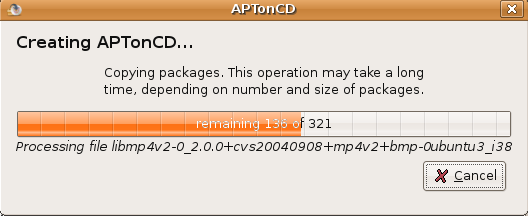
Here you can see APTonCD creating the necessary CD/DVD image and saves it in the location you had chosen is in progress
Here you can see the .iso image stored successfully in the location i had chosen and you can use this image you can burn CD/DVD

Restore Packages
If you want to restore your backup you need to click on restore tab now you should see the following screen this is having three options as follows

Restore APTonCD
Restores all packages available from an APTonCD media to your computer
Restore .iso Image
Restores packages from an APTonCD .iso image previously generated and stored locally
Add CD/DVD
Add a CD or DVD created as a repository for apt-get,aptitude or synaptic
You can choose which one is suitable for you and restore all your packages
APTonCD Version Details

This tools is very useful if you want to install same packages in different machine you can save your bandwidth and if you have slow internet connection
All articles are really useful for new or less experienced users So Thanks for good work
I want to ask how installation work on new (clone) system for old downloaded software aptcondate.iso yes updates have been taken automatically from aptoncd no extra download (showing also in as installed or obsolete) but there were many other like apache php java adobe reader about 500 mb they are not looking in installed and file by “sudo dpkg –get-selections | grep ‘[[:space:]]install$=’| awk ‘{print $1}’ > installedpackages” 0 bite showing, so please help more about this subject for other then updates softwares which downloaded on other system and are in iso image file how install them with help of iso image
Thanks for the info! Good work, keep it up.
everytime i try and install it it keeps saying
Error: Dependecny is not satisfiable:python-suppport.
any ideas?
try typing
sudo apt-get install python-support
in the terminal
What about support for wget command? I like using it because you know specifically where your packages are coming from where it can be from any of a number of places using aptitude and apt-get.
What a useful article!!
I have some experiencia using linux distributions, but I never knew
how to backup my installed system of Ubuntu, now I now how to do it
very easily, thank you very much!!!
Thanks. Very helpful.
nice work !
but it keeps on saying that
“dependencies of the desired file not available in ubuntu 8.04 ?
can any one help
Many people use the computer janitor, or remove the package files from /var/cache/apt/archives manually to clean their systems. I’m assuming Aptoncd would only backup the packages you’ve yet to clear out of that dir… right?
****DONT USE IT ON UBUNTU 9.10****
aptoncd package has dependencies on nautilus-cd-burner, which is not supported for Karmic, so once you have clean install of Karmic you wont be able to install ATPONCD which makes this backup unusable
@chris funck, donno what you’re talkin’ about. It does depend on the nautiluscdburner but you can always install it again.
Looks great, the sys folder /var/cache/apt/archives has a limited amount of recently added/updated software.
How do I create a complete image of all currently loaded packages on my sys so I can get off Karmic. My connection is too slow to redo it in synaptic.
i have done all those steps above but, i don’t know how to install the packages on my system, as i have restored them on the usr/cache/apt/archive but packages are still not installed in my system(mean i can not use or even see them in my programs list. please help and also tell me how will i know which packages are restored and are available in the archive folder?
i have even tried apt-get install to install them but as far as my view is concerned i think this command does not take a look at already available packages and picks them from the download server.
How much time does it takes to do the back up ?
I am just taking the back up of the files in the /var/cache/apt/archives. I clicked on the burn.
It is not showing me any message.