

Sponsored Link
Furius ISO Mount Features
- Automatically Mounts ISO, IMG, BIN, MDF and NRG Image Files.
- Automatically creates a mount point in your home directory.
- Automatically Unmounts the Image files.
- Automatically removes the mount directory to return your home directory to its previous state.
- Automatically saves the history of the last 10 images mounted.
- Mounts multiple images.
- Burn ISO and IMG Files to optical disk.
- Generate Md5 and SHA1 checksums.
- Automatically retrieves any previously unmounted images.
- Automatically generates a log file of all commands needed to mount and unmount images manually.
Install Furius ISO Mount in Ubuntu
First you need to download .deb package from here
http://www.marcus-furius.com/files/FuriusIsoMount/furiusisomount_0.9.0.0-1_i386.deb using the following command
wget http://www.marcus-furius.com/files/FuriusIsoMount/furiusisomount_0.9.0.0-1_i386.deb
Now you have .deb package you need to install this using the following command
sudo dpkg -i furiusisomount_0.9.0.0-1_i386.deb
This will install all the required packages for Furius ISO Mount.
Install Furius ISO Mount in Ubuntu 9.10 (karmic)
open the terminal and run the following command
sudo apt-get install furiusisomount
Using Furius ISO Mount
If you want to open Furius ISO Mount go to Applications--->Sound & Video--->Furis ISO Mount

Once it opens you should see similar to the following screen
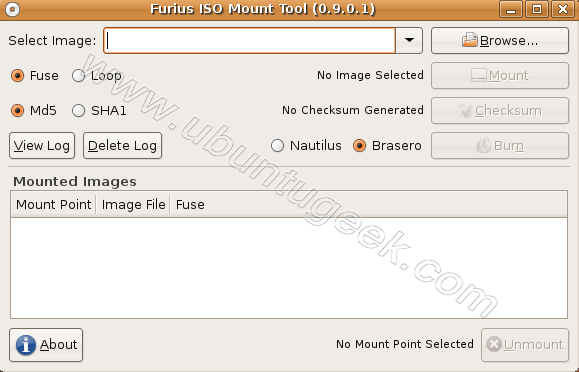
Now you need to select your .iso file by clicking on Browse

You need to click on Mount to mount you .iso file you can see sample mount point

If you want to unmount .iso file select your mount point and click on unmount

This deb is also in the repos (Local/main)
so “sudo apt-get install furiusisomount” is the way to go ^^
It is not in my repos. So thanks for the link! 🙂
Actually, “sudo aptitude install furiusisomount” is usually wiser. Rollback has saved my digital butt a few times.
@Rakudave: You sure it’s in the repos? I just checked and can’t see it ..
Or you can use Gmount-iso which has less clutter in it.
can I only use .iso images? can I use .nrg made from nero software?
Read the source uhhh — the text luke! 😉
@Shubuntu, Furius ISO Mount allows you to automatically mount ISO, IMG, BIN, MDF and NRG Image Files. Burning support is only available for ISO and IMG, however. BTW, 64bit version is also available.
Shubuntu, did you read the article?
Furius ISO Mount Features
* Automatically Mounts ISO, IMG, BIN, MDF and NRG Image Files.
.nrg is there.
Looks good. I missed Daemon Tools since I left Windows XP, this seems to be a good replacement.
@ Shubuntu
Did you even read past the title of the article!?
“Automatically Mounts ISO, IMG, BIN, MDF and NRG Image Files.”
Does it support command-line mode? I would like to avoid GUI whenever possible…
@Man-wai Chang
I don’t think so
There’s also ISO Master:
http://www.littlesvr.ca/isomaster/
which is well packaged for most distributions.
And if all you want to do is mount a simple ISO image, skip the palaver, it’s just:
mount -o loop /path/to/file.iso /path/to/mount/point
@adam
we have already discussed about iso master here
“I would like to avoid GUI whenever possible…”
Haha.. What a tard.
When I see something interested that I could use in UBUNTU, I get to the file and then…..upon clicking/downloading em,,,,I get all these tar.gz files that archive manager opens for me.
I dont know what to do next.
I take it, clicking on Those files are not going to self-extract and install themselves and make themselves useful to me?
🙂
sorry naive…
How do you change the mount point ?
I don’t want I to be in my home folder
Hello! First congratulations on the wonderful work with Furius ISO Mount. I have a doubt if you can help me: ride whenever an ISO image, NGR, etc, after restarting the OS Ubuntu 10.04 (and not answering the question asked if I want to unmount the image) images are disassembled. Could tell me why this happens? Its cause the mounted images are not dismantled to restart or shut down the Ubuntu OS?
Now, thank you attention.
Sincerely,
Fernando.
I tired this program and it mounts my bd iso but when I go to the folder I cannot see my files. How can I see them? Thanks!