

Sponsored Link
Webilder Features
- download flickr photos that match tags (for example: beach,party)
- download photos from flickr users of your choice.
- download most interesting photos from flickr.
- download amazing daily proshots from Webshots (requires Webshots account).
- automatically download new photos for you.
- change your wallpaper every few minutes.
- import webshots collections (wbz or wbc formats).
Install Webilder in Ubuntu
First you need to edit the /etc/apt/sources.list file
sudo gedit /etc/apt/sources.list
and add the following source list which is suitable for you save the file and exit
For Ubuntu Intrepid (i386, amd64, powerpc of sparc) Users
deb http://debian.websterwood.com/ intrepid main
deb-src http://debian.websterwood.com/ intrepid main
For Ubuntu Hardy (i386, amd64, powerpc of sparc) Users
deb http://debian.websterwood.com/ hardy main
deb-src http://debian.websterwood.com/ hardy main
For Ubuntu Gusty (i386, amd64, powerpc of sparc) Users
deb http://debian.websterwood.com/ gusty main
deb-src http://debian.websterwood.com/ gusty main
For Ubuntu Feisty (i386, amd64, powerpc of sparc) Users
deb http://debian.websterwood.com/ feisty main
deb-src http://debian.websterwood.com/ feisty main
For Ubuntu Edgy (i386, amd64, powerpc of sparc) Users
deb http://debian.websterwood.com/ edgy main
deb-src http://debian.websterwood.com/ edgy main
For Ubuntu Dapper (i386, amd64, powerpc or sparc) Users
deb http://debian.websterwood.com/ dapper main
deb-src http://debian.websterwood.com/ dapper main
Now you need to update the source list using the following command
sudo apt-get update
Install Webilder using the following command
If you are using GNOME Desktop use the following command
sudo apt-get install webilder webilder-gnome
If you are using KDE Desktop use the following command
sudo apt-get install webilder webilder-kde
This will complete the installation process
Adding Webilder to your Desktop Panel
For GNOME Users
Right-click on the GNOME panel you should see the following screen here you need to choose "Add to Panel"

Once you choose Add to Panel option you should see the following screen here under utility you need select "Webilder Webshots Applet" and click on add

Now you should see one small camera icon marked with Red added to your desktop panel

For KDE Users
From the graphics menu, start KWebilder. Go to the preferences Window, to the Advanced Tab, and select KDE wallpapers settings
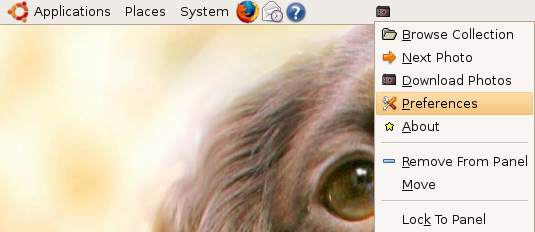
Now you need to download photos from flicker for this right click on Webilder on your desktop panel and select "Download Photos" option you can see this in the following screen

Downloading Photos are in progress
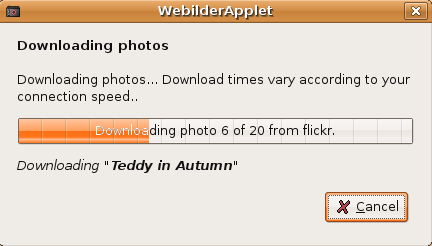
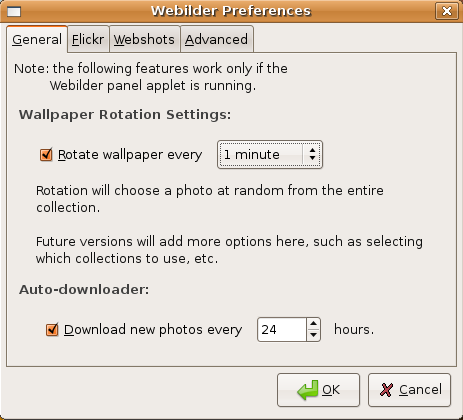
Once dowload finished your desktop will start refreshing wallpapers by default 5 min if you want to change this option you need to right click on Webilder on your desktop panel and select "Preferences"
You should see the following option here you can select what time your wallpaper need to be refresh or photos download option
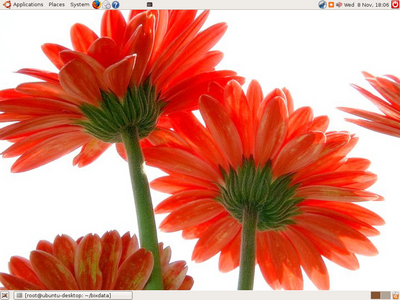
Some of the Flicker Wallpapers from my Ubuntu Desktop


It very important to say that:
Webilder is a free and open-source software released under the GPL license.
And I’m so happy it IS! I’ve been looking for that. And until now I just use my own script…
this is much better than my work.
10x.
I have been using Webilder for a year and it rocks…
this is really fantastic
thanks to the guyz who provided this software
Wow, this is awesome. It also works with Hardy Heron — I just had to change the “feisty” to “hardy” in /etc/apt/sources.list .
Hi. Will Webilder work with Ubuntu 8.10?
i can’t seem to find any intrepid debs. can anyone point me to them?
i’m using intrepid, and these worked for me:
deb http://debian.websterwood.com/ intrepid main
deb-src http://debian.websterwood.com/ intrepid main
good stuff. thanks.
Everything is installed and configured but it won’t show any wallpapers in KDE or GNOME.
If one is not running GNOME or KDE and wishes to use an
external program eg “xli” to display the image in the root window background, then go to
Webilder Desktop -> Tools -> Preferences -> [Advanced]
Click the radio button for
* Set a wallpaper by running
and enter the command in the text box, eg for xli
/usr/bin/xli -border “#222a2a” -fullscreen -onroot -quiet “%f”
Aduust the border color to your own preference but note that the double quotes are essential around the color if specified using the #rrggbb format, and around the file name parameter %f
Obviously this facility could be used to point to a shell script which could do all sorts of neat tricks as well as displaying the file in the root window eg playing a sound to alert you to the change of root background, or whatever you would like executed at the frequency selected for changing the root window wallpaper.
As the deb packages for Webilder may no longer be available and Ubuntu has moved on, the best option is to download the source code 0.6.3 and compile it and install yourself, preferably under /usr/local with STOW management.