

Sponsored Link
By Default most of the users configure their network card during the installation of Ubuntu. You can however, use the ifconfig command at the shell prompt or Ubuntu's graphical network configuration tools, such as network-admin, to edit your system's network device information or to add or remove network devices on your system
Configuring Network Using Graphical Configuration Tool in Ubuntu
If you are new to networking the graphical configuration tool is your best method for configuring new hardware in Ubuntu.We are going to use GUI tool "network-admin" to configure networking. Remember, you must be root to run network-admin.
There are two ways to start network-admin first thing is you can use your terminal to type "sudo network-admin" it will start up or you can go to System--->Administration --->Networking
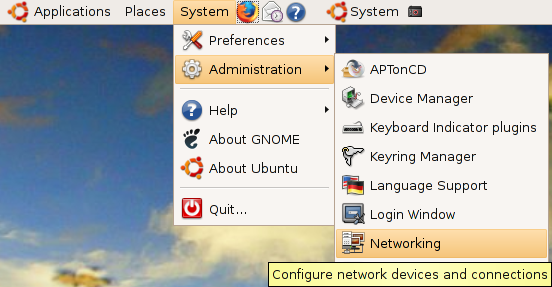
Once it opens you should see the following screen
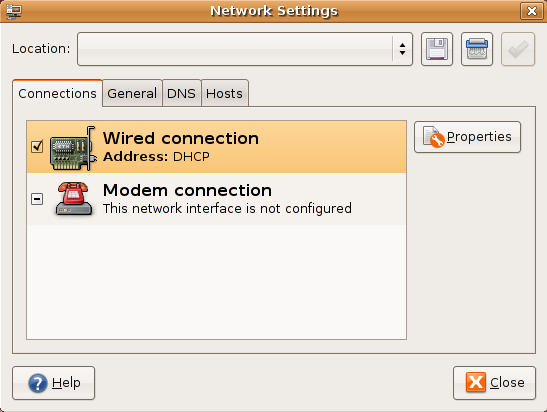
In the above screen select wired connection and click on properties tab you should see the following screen my network card is curretly configured for DHCP client and you need to make sure "Enable this connection" tick box is checked

If you want to configure the Static ipaddress you need to select drop down box under "Configuration" select static ip address and you need to make sure "Enable this connection" tick box is checked

Once you select the static ip address you need to select ip address,subnet mask,gateway address and click on ok

Now you click on "General" tab here you can enter your hostname,domain name

Next one you need to click on "DNS" tab to configure your system's DNS settings, hostname, or DNS search path.

Click the Hosts tab, and then either click the Add or Properties button (after selecting a host) to create or edit an entry in your system's /etc/hosts file

Highlight an existing entry, and then click the Properties button to change /etc/hosts entries in the Hosts tab of the Network Configuration screen.

You can also assign different locations to your computer, especially very useful if you are on a laptop and move between several networks each requiring different configurations. Just select the gray bar at the top of the network-admin window and select Create Location. Enter a name, such as Home and then repeat this again to create another location, Work. Each time you switch between locations, Ubuntu detects that it needs to use configurations specific to those locations, so for instance you might want to use DHCP at work, but not at home. Simple; just select the Home location, configure your ethernet connection to use a Static IP and you are all set to switch between your home and corporate networks.
Hi, i did those steps but i can´t connect to my lan.
somebody can help me?
thanks
Rustyip: this is where polite systems admins say “is your computer plugged in?”
Less polite ones say “The problem seems to be somewhere between the chair and the keyboard”
Don, unfortunately this crap doesn’t work. My question is: wtf can’t the ubuntu devs have all the network crap in this ‘network applet’ run in a separate thread from the gui, display a busy dialog, and let the user know wtf is going on without hanging up the applet? This is basic stuff guys.
network configuration is really bullshit… noway to disable the usb0 !
no way to do something correct, I am turning back to my old redhat
This GUI doesn’t work. It is ok for setting up network card, netmask and DNS but always fails on the default gateway. It has been like that for the past 2 years. Not very newbie friendly. I don’t know why they don’t fix it, every other distro has. After all it is pretty basic.
Yep. It just doesn’t work. Linux for the desktop = elitist bullshit. I gave up on Ubuntu exactly 2 years ago because a lot of basic stuff won’t work. Today I wasted my whole day trying to configure basic, really basic things.. well I don’t know what to say really. I run some servers on debian and I consider myself experienced, yet with the graphic tools it was impossible to finish my job. Some of them just won’t start. Fantastic eh?
The Linux elitist community is its own worst enemy.
THis article must refer to the older Ubuntu version. I am trying Ubuntu 8.10 and it has no “Network Settings” window at all! I can access System->Preferences->{Network Proxy or Connection}, but there is no way to access “General”, “DNS” or “Hosts”.
I have the same issue as Yakov: I’m using 8.10 and cannot find the DNS tab. There’s no such tab under “preferences > network configuration”, “preference > network proxy” or “administration > network tools.”
What brought me here is that I often get a “page load error: connection interrupted: the connection to the server was reset while the page was loading,” no matter which browser I use in Ubuntu 8.10, although I never had this problem with Xubuntu or Windows. A possible solution I ran across was to use OpenDNS, but to do that I need to find the DNS tab. (I found the suggestion to use OpenDNS here: http://ubuntuforums.org/archive/index.php/t-893374.html )
Thanks for any help anyone can give!
It would seem that with 8.10, this tool is not automatically installed.
Go to applications/add remove and add the package “Network – Gnome network manager” (or something very close to that)
It would seem that there is a problem with Ubuntu 8.10, because I did a fresh install and “network-admin” is missing. Strange, but it’s not in Ubuntu 8.10. I did some searching around and this is what I found:
http://ubuntuforums.org/showthread.php?t=974847
http://ubuntuforums.org/showthread.php?t=974190
https://bugs.launchpad.net/ubuntu/+source/gnome-system-tools/+bug/184711
Well, I figured out the solution. For some reason “network-admin” the tool that is mentioned in this tutorial is not installed by default in the Ubuntu 8.10 installation.
Installing it is easy, just go to a command line and type the following:
sudo apt-get install gnome-network-admin
After it installs, you’ll have the “network” located under Systems->Administration->Network
Just like this tutorial says, and then you can just “unlock” by entering your root password, and everything works! Just as described in this tutorial. So it does work with Ubuntu 8.10, you just need to install the gnome-network-admin. It doesn’t seem to be installed by default in Ubuntu 8.10, but after you install it, it does work!
I just upgraded from 8.04 to 8.10, and suddenly I can’t get out on the internet. Both the wireles and the LAN-connections are lost. So I’d love to install the “network-admin”, but until I do I don’t have a connection to where it is. So as you can imagine it’s a bit difficult… Perhaps there is a way to install via usb-sticks? Right now I can access the internet only through my girlfriends PC (and she’s using Vista) so I don’t know if that will pose a problem? I don’t even know if this is the right forum to ask, but Please help me.
I’m running a Compaq Presario V5000
Thnx/
Jesper
Same problem, no network-admin, but Mark’s solution doesn’t work for me. Strange, but I did a fresh install, and I had a wired internet connection before downloading updates. Downloaded the 263 updates, and now it won’t even recognize the wired connection. Tried Mark’s command line and got several error messages, the gist of which are ‘could not resolve us.ubuntu.archive.com” Any ideas would be appreciated.
The OS is on an Acer Aspire One.
My problem is resolved (and I don’t know how – suddenly it just worked…), thanks anyway for you who pondered about it… 🙂
Lee, as I said I’m not sure why I’ve got internet again, but almost all tips and tricks I tried didn’t work,
and when it didn’t work even after a restart (one per tried remedy) they where all reverted.
The following is the only one I didn’t revert:
sudo ifconfig wlan0 up
Mostly I didn’t revert it since it didn’t make any sense to do so, but it didn’t seem to give any effect either. But suddenly – one day and 3-4 reboots later I got internet. Don’t know if that command gave anything, but I see no reason not to try?
Good luck anyway!
/Jesper
VERY EXCELLENT WAY OF TEACHING THANKS A LOT I WANT TO SET UBUNTU IN MY STUDENTS INTERNET CAFE SO I WAS SEARCHING FOR NETWORKING CONFIGURATION
Hi,
My problem on Ubuntu 9.10 boot USB is that THERE IS NO “NETWORKING” under System > Administration. In Fedora I could using GUI store different configurations under different profiles. Here using the NM Applet there are no profiles to save.
Please advise by emailing as above and thanks in advance,
Ansuman Datta
Hi,
Dear God! It simply can’t be THIS hard to set a static IP address?
Ubuntu 10.04 – trying for 3 hours to get this to accept a basic static IP.
I’ve Googled until I’m nearly dead, tried GUI, cmd shell, installed and uninstalled packages, reset everything and started all over again….all to no avail.
ifconfig tells me everything is hunky dory…but I am not decieved…nothing is actuallly ‘connected’.
DHCP works perfectly every time, but the only thing I get with a static IP, is a sort of overwhelming rage and a tendancy for my head to explode.
I actually hate to say this, but Windows has never given me this much grief over an IP.
yes sir, all wrong
I’m a WiFi installer, I need to set my IP statically periodically, and it ain’t looking to easy nor quick
I was on a ladder in a spooky warehouse last night trying to use the GUI typing with one finger on a netbook,
I don’t think this has anythng to do with elitism, but computers need to do what I need them to do, when and where I need them to work
Hmmm, one year later. Try “sudo apt-get install network-manager” if you don’t see the applet. If you’re offline download the tarball following the links at http://projects.gnome.org/NetworkManager/ from a Internet-enabled system. When you set up your DSL connection with NM, delete the wired eth0 connection.
Alternatively, execute “sudo pppoeconf” to configure your DSL connection or if pppoeconf is absent and you’re online then execute “sudo apt-get install pppoeconf”. If you are offline then get it from http://ftp.de.debian.org/debian/pool/main/p/pppoeconf/pppoeconf_1.18.tar.gz using another PC and install.
The main problem with ubuntu is version to version the locations of options and views are entirely changing. so it difficult to trace the option if one goes to a different version.
nothing happens….