

Sponsored Link
Parallels Workstation sophisticated virtualization engine enables each virtual machine to operate similarly to a physical computer. Each virtual machine has its own set of virtual hardware: processor, RAM, floppy, CD and DVD drives, I/O devices, and hard disk. See the Virtual Machine Hardware topic for the full list of Parallels virtual machine devices.Intel virtualization technology (VT-x) is fully supported by Parallels Workstation.
Parallels Features
- Easy to Install, Easy to Use
Fast to set up, intuitive to use, Workstation is designed from the ground up to make virtualization easy, regardless of your skill level. It even includes Parallels Tools, a special toolkit to help you make the most of its advanced features and functions.
- High Performance
Run your favorite software at near native speeds! Workstation is optimized to take full advantage of hardware virtualization through support of Intel VT and AMD’s Security and Virtual Machine (AMD SVM) for secure, high-performance virtual machines. Parallels® Workstation is a powerful, easy-to-use, and cost-effective desktop virtualization solution. It enables the user to create completely networked, totally secure independent virtual machines on a single physical computer.
- Flexibility
Have the broadest range of x86-based operating systems at your fingertips, including Windows, Linux, FreeBSD, OS/2, eComStation, Solaris, and MS-DOS.
- Strong, Stable Virtual Machines
Workstation’s Lightweight Hypervisor gives the virtual machine direct access to the host computer’s hardware, which lets you run Windows, Linux, and more all at the same time in a stable, secure, high-performing environment. The inclusion of this trusted, mature technology ensures that virtual PCs built using Parallels Workstation are maximally stable and efficient.
- Easy on the Pocket
Get advanced features designed for every user at an unbeatable price. Parallels Workstation gets the job done without burning a hole in your pocket.
Install Parallels in Ubuntu
This is not a free software you can try this software for free but if you want to use you have to buy a license.I am showing here is trial version of software with installation.
First you have to register on Parallels website from here and get the paralles .deb package and trial activation key.
Now you should be having the Parallels-2.2.2222-lin.deb package
Install Parallels-2.2.2222-lin.deb package using the following command
sudo dpkg -i Parallels-2.2.2222-lin.deb
Selecting previously deselected package parallels.
(Reading database ... 134704 files and directories currently installed.)
Unpacking parallels (from Parallels-2.2.2222-lin.deb) ...
Setting up parallels (2.2.2222) ...
Installation has been completed.
You must configure Parallels Workstation 2.2.2222.
before starting it for the first time.
Issue "parallels-config" command.
Now you need to run the following command to configure Paralles
sudo parallels-config
This will start asking some simple questions as follows

Using Parallels
If you want to open parallels Go to Applications--->System Tools--->Parallels

Parallels welcome screen

Creating New Virtual machine
In the following screen click Next

Virtual machine configuration select "Create a Typical VM (recommended)" click Next

Select you Gusest OS and Guest OS Version click Next

Virtual Machien Name and Location click Finish

Creating VM directory click Yes

Virtual Machine created now you can see as follows

If you want to change the settings click on edit you can add or change the settings and click ok

When you start this virtual machine it will prompt for Activation key

Enter the activation Key we have got when we register with parallels click activate

Activation Completed
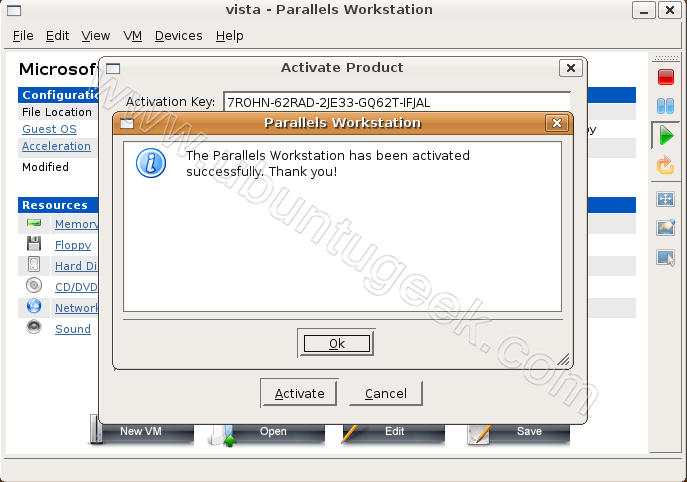
Now you can start installing your guest OS Vista,Linux,Solaris etc
Uninstall Parallels
If you want to uninstall parallels use the following command
sudo dpkg -r Parallels
Enter the root password when prompted.
Booooo, not free software! For shame!
Try this instead? http://xen.org/
Though may be a great piece of virtualization software (under 32-bit OS), it never installs even with –force-architecture and the linux32 wrapper. Gave it up for VMWare server.
A frustrating piece of software that crashes every time headers are updated or everytime you upgrade. I have to run parallels-config every time this happens and invariably something goes wrong and it takes ages to debug. Virtualbox is a much better program, has more features and is free (as in free beer)
Virutalbox has been bought by Sun! I read Virtual box is not as good or as fast as Parallels if you had the misfortune of needing to run Vista, but it’s fine for running things like BSD, other Linux OSes, etc.
I prefer vmware-server. Lots of options and easy to use. I was not impressed with VirtualBox in Ubuntu. Parallels worked great, but the USB support was patchy at best. Garmin worked great, but flash drive had issues.
Great walkthrough though!
It does not compile for me…
I have the necessary packages installed but it does not compile.
I have 8.04 Hardy and 2.6.24-19-generic kernel version.
I have tried Virtualbox on Ubuntu and installed Vista as a guest OS. It runs just fine.
Too bad Parallels ain’t free… I probably won’t be using it on my Ubuntu machine.. cause it kind of defeats the purpose… hehe…
Ubuntu 8.04 , Parallels just blows up on parallels-config,
cannot compile from /usr/lib/parallels/drivers/drv_net/linux
the instructions left behind after the failure says
Can not compile and/or link drivers. Read /usr/lib/parallels/doc/INSTALL
and follow instructions specified in this document.
Yea well, guess what your path is either wrong or you did not include this INSTALL doc, cause its not there.
Secondly, the output does not tell me what went wrong, the logging is useless
Virtual box and Vmware server work fine on the same box and were flawless in the install process.
I guess I will wait until parallels gets their crap together before I try it again. No way I am paying for something that does not work and won’t install.
I get the same issue Chris above gets, this is crap, I bought this and it works fine under windows, but this thing freaks out with new linux kernals, I’m so mad!!!
The same issue on Ubuntu 9.04, the compilation doesn’t work and as chris said, the /usr/lib/parallels/doc/INSTALL isn’t there. I saw P. working on a Mac, but for Linux I’m looking for another vm.
I had the same issue (installer scripts barfing at X11 version). However I at least with some effort was able to install enough of the parallel tools in ubuntu 9.04 for it to work.
modprobe prl_fs worked, and after ‘mkdir /media/psf’ and adding the following to my /etc/fstab I was able to mount the macos home via ‘mount -a’:
#Parallels Shared Folder mount
none /media/psf prl_fs defaults,share 0 0
Just installed Ubuntu 9.04 under Parallels 3 on my Mac… dont bother making the same mistake. Installs fine – but then when Ubuntu starts it get stuck in an endless loop of asking for the password! Argh!!! I wouldnt buy parallels again given the choice – have used VMWare and seems like a much better product (although never tried installing Ubuntu)