

Sponsored Link
Install C and C++ Compilers in Ubuntu
sudo aptitude install build-essential
This will install all the required packages for C and C++ compilers
Testing C and C++ Programs
Compiling Your first C Programs
Now you need to open first.c file
sudo gedit first.c
add the following lines save and exit the file

Firstly compile the code using the following command
cc -c first.c
that would produce an object file you may need to add to the library.
then create an executable using the following command
cc -o first first.c
Now run this executable using the following command
./first
Output should show as follows
Hello, world
Compiling your first C++ program
If you want to run c++ program follow this procedure
g++ is the compiler that you must use.
you should use a .cpp file extension rather than a .c one
You need to create a file
sudo gedit first.cpp
add the following lines save and exit the file
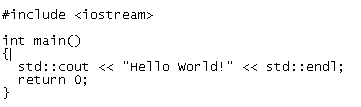
Run your C++ Program using the following command
g++ first.cpp -o test
./test
Output should show as follows
Hello World!
Worked perfectly on first try for both C and C++ test programs. Very clear instructions. Thanks!
I’m going to try it.!!
I hope it work.
Good instructions.
It’s OK for me.
Thanks!
can know the link to download C++ compiler for Ubuntu 9.04
“can know the link to download C++ compiler for Ubuntu 9.04”
Copy paste the following in terminal:
sudo aptitude install build-essential
Guys , i did install the essential , started the editor, input the test for both C++ ( which i am interested in) and C.
Does not build, nor execute.
Plz help i have the feeling i am not in theproper directory.
Thx
When I enter:
sudo aptitude install build-essential
it says:
Couldn’t find any package whose name or description matched “build-essential”
Perhaps I am in the wrong directory?
Any advice would be greatly appreciated.
Thank you,
Dennis
OK, that last post was totally newbie. However, just in case some other green horn is out there with the same issue:
If you have a fresh install of Ubuntu Jaunty, you must first go online and download all updates. After this, the ‘sudo aptitude install build-essential’ command will install correctly.
Good luck.
You are awesome !!! I did install and successfully compiled and ran it…
thanks dude … for tht thig ….its running
but the problem is tht when i executed it
the output came as
helo worldvinamra@vinamra-desktop:~$
i dont want tht name with it
Check if you have put \n after Hello worlod, i.e. the line should read here as under;
printf(”Hello, world\n”);
haha thanks dude, i broke my leg and its the summer and i figured i’d try learning C++ in linux so i dont go crazy here. This is pretty cool, it all worked fine except the C++ tutorial:
#include
int main()
{|
std::cout << "Hello World!" << std::endl;
return 0;
}
i had to remove the pipe (|) after the first { and compiled fine
[Quote]thanks dude … for tht thig ….its running
but the problem is tht when i executed it
the output came as
helo worldvinamra@vinamra-desktop:~$[/Quote]
ok, the
[code]vinamra@vinamra-desktop:~$[/code]
is just prompting you for another command… it’s gonna show up if you did everything else properly.
i want c-programing in my computer
Hi. Sorry to bother but I am super new to Ubuntu and when I ran this program I got all of these errors…. Can you help me please? Thanks
hello_world.cpp:4: error: stray ‘\302’ in program
hello_world.cpp:4: error: stray ‘\250’ in program
hello_world.cpp:4: error: stray ‘\302’ in program
hello_world.cpp:4: error: stray ‘\250’ in program
hello_world.cpp: In function ‘int main()’:
hello_world.cpp:4: error: ‘cout’ is not a member of ‘std’
hello_world.cpp:4: error: ‘Hello’ was not declared in this scope
hello_world.cpp:4: error: expected `;’ before ‘World’
Nvm on my problem…. solved it myself 🙂
This got me started, so thanks for that. I was able to build my own socket server… C rocks!
One thing I noticed is that you don’t get the header files like mysql.h gtk.h automatically.
I’m ready for the next step, can you advise?
wow!!!!
its great……
it wrkd……
compiler installed in 10 min……
thanks…
2TKA
that pipe supposed to be cursor.
Hello. Im new to linux and gcc.
A question … do i always have to write “sudo gedit srcname” , quit qedit after making changes and compile with shell using “g++ srcname -o binname” ?
Is there any gcc version with gui or something like more comfortable ?
i don’t know how you do that guys, i follow the instructions but nothing works. i only have this message:
hervman@ubuntu:~$ gedit
hervman@ubuntu:~$ gedit first.cpp
hervman@ubuntu:~$ g++ first.cpp -o test./test
/usr/bin/ld: cannot open output file test./test: No such file or directory
collect2: ld returned 1 exit status
Worked great. I wish they would add these packages as default. But none the less, it was no problem adding them.
Thanks!
Great. Very clear. Thanks for the help. Particularly for this stuff at the beginning, I’m glad you did not underestimate the potential lack of knowledge.
how do i install c++ on my own computer?? well, this page is interesting…
I am very new in Ubuntu & a CSE student. I want to use gcc compiler to do my coding in ubuntu. But I do not know anything even about how to open this compiler’s IDE. So please help me.
hey hervman,
you did a mistake. check this out
hervman@ubuntu:~$ gedit first.cpp
hervman@ubuntu:~$ g++ first.cpp -o test
hervman@ubuntu:~$ ./test
hi , i hav ubuntu and i m new to it , i have c on my xp , can i copy paste that on ubntu and run c ?
i didnt get all the above 🙁 ,
is c already present on linux , shall i need to download from net …
Thanks for the clear instructions – got everything working within minutes. After the apt-get, that is… 🙂
Hey there, you don’t need sudo for gedit. gedit is an editor, you only want to invoke it with root privileges when editing files you don’t have direct write access to, such as /etc/hostname. Secondly, when you need to edit those files, it is a good habit to use gksu instead of sudo for gtk (graphical) applications, and kdesudo or kdesu can be used to obtain root privileges on KDE.
So to use gedit to create or edit a source file, “gedit something.cpp” will suffice.
Cheers.