

Sponsored Link
Other tools in the package support synchronization of time in the guest operating system with time on the host, automatic grabbing and releasing of the mouse cursor, copying and pasting between guest and host, and improved mouse performance in some guest operating systems.
Click on VM in the top menu of the VMware Server console and select Install VMware Tools.
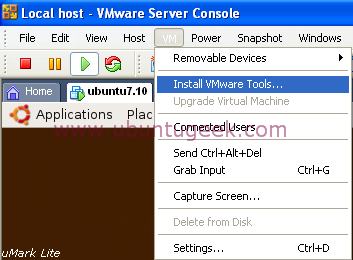
Now you should be able see the following screen here click on install

Now you should see similar to the following screen on your desktop

First copy the VMware Tools from the mounted iso to the temporary folder
cp /media/cdrom/VMwareTools-1.0.3-44356.tar.gz /tmp/
Afterwards switch to the temporary folder and unpack the VMware Tools:
cd /tmp/
tar xvfz VMwareTools-1.0.3-44356.tar.gz
Next switch to the folder with the unpacked files and execute the installer:
cd vmware-tools-distrib/
sudo ./vmware-install.pl
Now you will be asked a few questions relating to installation paths etc. Choose the default value every time (simply hit enter).
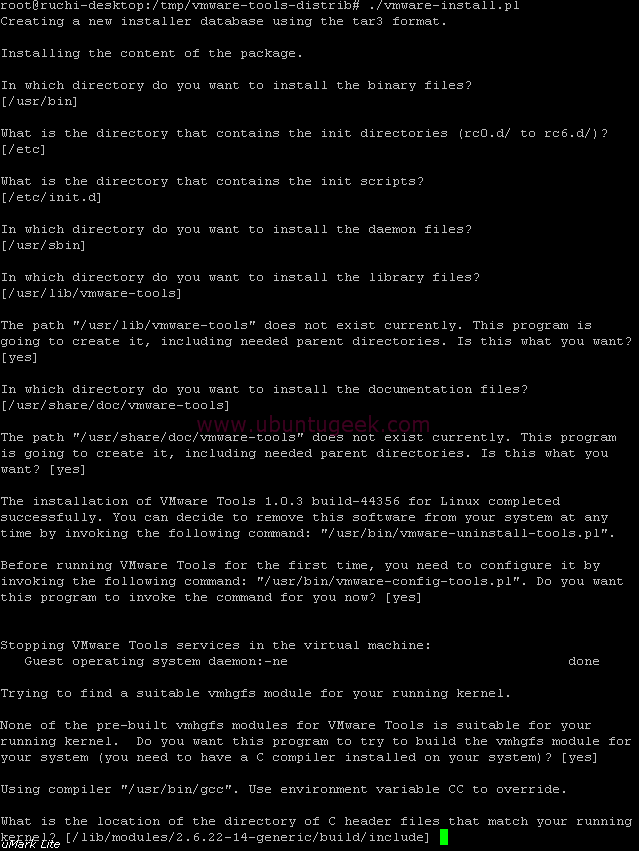
After the installation/configuration finished you have to start the VMware Tools:
vmware-toolbox &
Once it opens you should be able to see similar to the following screen

Vmware tools version details

Note: If you close the VMware Tools window, the VMware Tools will be disabled immediately.
Method 2
Another simple method to install Vmware tools using simple scripts check here
when i`m trying to install using the command
sudo ./vmware-install.pl
always says request denied…what should i do?
Same issue .. when I tried to install linux-headers-virtual, I get:
What is the location of the directory of C header files that match your running
kernel? [/usr/src/linux/include] /usr/src/linux-headers-2.6.35-24-virtual/include
The directory of kernel headers (version @@VMWARE@@ UTS_RELEASE) does not match
your running kernel (version 2.6.35-24-generic). Even if the module were to
compile successfully, it would not load into the running kernel.
I’m getting the same problem as Frank. Hopefully a solution will present itself soon!
UTS_RELEASE is not defined in version.h, you can either patch the install script or simply copy the contents of utsrelease.h into version.h
cd /usr/src/linux-headers-2.6.35-24-generic/include/linux
cat /usr/src/linux-headers-2.6.35-24-generic/include/generated/utsrelease.h >> version.h
One more thing you will need to do before re-run the script is:
cp /usr/src/linux-headers-2.6.35-24-generic/include/generated/* /usr/src/linux-headers-2.6.35-24-generic/include/linux/
This should solve your problem
@Krusty810, of all the places I have found this on the web, yours has the answer that works!! Thanks a TON!
2 Krusty810:
Thank you a lot !
Great !
Worked for me too.
Thanks a lot
Paolo
no problem with version 10.10
good job!!
thx
Thank you. Great help.
Thanks Mate , Works like a charm 🙂 Happy Days..
why do i get this error
bash: version.h: Permission denied
when i type cat /usr/src/linux-headers-2.6.35-24-generic/include/generated/utsrelease.h >> version.h
?
@liquidsun That’s because you don’t have permissions in that directory by default; either change your permissions to the root user, or temporarily lower the permissions on that file (sudo chmod a+w version.h) so you can overwrite it.
I’m getting build problems with VMware Tools 4.0.0 build 294855, even having installed gcc, patching as per @Krusty810’s instructions and pointing at the “/lib/modules/2.6.38-8-server/include” directory. The source code itself appears to be wrong for the vmhgfs, vmxnet and vmci modules. An example of an error I get is “/tmp/vmware-config3/vmhgfs-only/super.c:74:4: error: Unknown field ‘clear_inode’ specified in intializer”. Checking in the kernel header source “fs.h”, there is no such field in the “super_operations” structure definition (line 1606).
thanks alot…. worked for me…
Krusty810 : Thanks. Worked for me…..!
I’m getting the same error as liquidsun, but I found out that I don’t have the …./generated/ folder.
What do I need to run or install to have it?
(btw, I’m trying on linux-headers-2.6.31-14 which is my current kernel)
Do I need any other package pre-installed?
Thanks for any help
@Krusty810, thanks pal – works also on kernel 3.0.0.12!!!! I should have found your comments sooner….
Had this on Ubuntu 8.04.4 with kernel 2.6.24-30 on ESXi 4.1u2
Krusty810 workaround didn’t help end up using OSP see here:
http://ubuntuforums.org/showthread.php?p=11601210#post11601210
Thank you for this guide. It helped me very much while trying to figure it out how to proceed with VMware Tools installation on a guest Ubunto 64-bit 11.10
iam trying dis on my ubuntu 10.10 with kernel version 2.6.35-22-generic.it is showing error (execution aborted) on installing vmserver 2.0.0.
after giving the location of the directory of C header files it is showing error.
Extracting the sources of the vmmon module.
Building the vmmon module.
Using 2.6.x kernel build system.
make: Entering directory `/tmp/vmware-config0/vmmon-only’
make -C /usr/src/linux-headers-2.6.35-22-generic/include/.. SUBDIRS=$PWD SRCROOT=$PWD/. modules
make[1]: Entering directory `/usr/src/linux-headers-2.6.35-22-generic’
CC [M] /tmp/vmware-config0/vmmon-only/linux/driver.o
In file included from /tmp/vmware-config0/vmmon-only/linux/driver.c:31:
/tmp/vmware-config0/vmmon-only/./include/compat_wait.h:78: error: conflicting types for ‘poll_initwait’
include/linux/poll.h:72: note: previous declaration of ‘poll_initwait’ was here
In file included from /tmp/vmware-config0/vmmon-only/./include/vmware.h:38,
from /tmp/vmware-config0/vmmon-only/linux/driver.c:99:
/tmp/vmware-config0/vmmon-only/./include/vm_basic_types.h:108: warning: “__FreeBSD__” is not defined
In file included from /tmp/vmware-config0/vmmon-only/./common/vmx86.h:31,
from /tmp/vmware-config0/vmmon-only/linux/driver.h:29,
from /tmp/vmware-config0/vmmon-only/linux/driver.c:101:
/tmp/vmware-config0/vmmon-only/./include/x86apic.h:97: warning: “APIC_BASE_MSR” redefined
/usr/src/linux-headers-2.6.35-22-generic/arch/x86/include/asm/apicdef.h:142: note: this is the location of the previous definition
In file included from /tmp/vmware-config0/vmmon-only/./common/vmx86.h:32,
from /tmp/vmware-config0/vmmon-only/linux/driver.h:29,
from /tmp/vmware-config0/vmmon-only/linux/driver.c:101:
/tmp/vmware-config0/vmmon-only/./include/x86msr.h:164: warning: “MSR_THERM2_CTL” redefined
/usr/src/linux-headers-2.6.35-22-generic/arch/x86/include/asm/msr-index.h:236: note: this is the location of the previous definition
In file included from /tmp/vmware-config0/vmmon-only/./include/vcpuset.h:103,
from /tmp/vmware-config0/vmmon-only/./include/modulecall.h:37,
from /tmp/vmware-config0/vmmon-only/./common/vmx86.h:33,
from /tmp/vmware-config0/vmmon-only/linux/driver.h:29,
from /tmp/vmware-config0/vmmon-only/linux/driver.c:101:
/tmp/vmware-config0/vmmon-only/./include/vm_atomic.h:329: warning: “_MSC_VER” is not defined
/tmp/vmware-config0/vmmon-only/./include/vm_atomic.h:333: warning: “_MSC_VER” is not defined
/tmp/vmware-config0/vmmon-only/./include/vm_atomic.h:401: warning: “_MSC_VER” is not defined
/tmp/vmware-config0/vmmon-only/./include/vm_atomic.h:407: warning: “_MSC_VER” is not defined
/tmp/vmware-config0/vmmon-only/./include/vm_atomic.h: In function ‘Atomic_And’:
/tmp/vmware-config0/vmmon-only/./include/vm_atomic.h:506: warning: “_MSC_VER” is not defined
/tmp/vmware-config0/vmmon-only/./include/vm_atomic.h: In function ‘Atomic_Or’:
/tmp/vmware-config0/vmmon-only/./include/vm_atomic.h:595: warning: “_MSC_VER” is not defined
/tmp/vmware-config0/vmmon-only/./include/vm_atomic.h: In function ‘Atomic_Xor’:
/tmp/vmware-config0/vmmon-only/./include/vm_atomic.h:684: warning: “_MSC_VER” is not defined
/tmp/vmware-config0/vmmon-only/./include/vm_atomic.h: In function ‘Atomic_Add’:
/tmp/vmware-config0/vmmon-only/./include/vm_atomic.h:773: warning: “_MSC_VER” is not defined
/tmp/vmware-config0/vmmon-only/./include/vm_atomic.h:775: warning: “_MSC_VER” is not defined
/tmp/vmware-config0/vmmon-only/./include/vm_atomic.h: In function ‘Atomic_Sub’:
/tmp/vmware-config0/vmmon-only/./include/vm_atomic.h:860: warning: “_MSC_VER” is not defined
/tmp/vmware-config0/vmmon-only/./include/vm_atomic.h:862: warning: “_MSC_VER” is not defined
/tmp/vmware-config0/vmmon-only/./include/vm_atomic.h: In function ‘Atomic_Inc’:
/tmp/vmware-config0/vmmon-only/./include/vm_atomic.h:945: warning: “_MSC_VER” is not defined
/tmp/vmware-config0/vmmon-only/./include/vm_atomic.h:947: warning: “_MSC_VER” is not defined
/tmp/vmware-config0/vmmon-only/./include/vm_atomic.h: In function ‘Atomic_Dec’:
/tmp/vmware-config0/vmmon-only/./include/vm_atomic.h:1028: warning: “_MSC_VER” is not defined
/tmp/vmware-config0/vmmon-only/./include/vm_atomic.h:1030: warning: “_MSC_VER” is not defined
/tmp/vmware-config0/vmmon-only/./include/vm_atomic.h: At top level:
/tmp/vmware-config0/vmmon-only/./include/vm_atomic.h:1223: warning: “_MSC_VER” is not defined
/tmp/vmware-config0/vmmon-only/./include/vm_atomic.h:1227: warning: “_MSC_VER” is not defined
/tmp/vmware-config0/vmmon-only/./include/vm_atomic.h:1536: warning: “_MSC_VER” is not defined
/tmp/vmware-config0/vmmon-only/./include/vm_atomic.h:1663: warning: “_MSC_VER” is not defined
In file included from /tmp/vmware-config0/vmmon-only/./include/vm_basic_asm.h:46,
from /tmp/vmware-config0/vmmon-only/./include/rateconv.h:45,
from /tmp/vmware-config0/vmmon-only/./include/modulecall.h:40,
from /tmp/vmware-config0/vmmon-only/./common/vmx86.h:33,
from /tmp/vmware-config0/vmmon-only/linux/driver.h:29,
from /tmp/vmware-config0/vmmon-only/linux/driver.c:101:
/tmp/vmware-config0/vmmon-only/./include/vm_basic_asm_x86.h:62: warning: “_MSC_VER” is not defined
/tmp/vmware-config0/vmmon-only/./include/vm_basic_asm_x86.h:177: warning: “_MSC_VER” is not defined
/tmp/vmware-config0/vmmon-only/./include/vm_basic_asm_x86.h:346: warning: “_MSC_VER” is not defined
/tmp/vmware-config0/vmmon-only/./include/vm_basic_asm_x86.h:453: warning: “_MSC_VER” is not defined
In file included from /tmp/vmware-config0/vmmon-only/./include/vm_asm.h:43,
from /tmp/vmware-config0/vmmon-only/linux/driver.c:103:
/tmp/vmware-config0/vmmon-only/./include/vm_asm_x86.h:486: warning: “_MSC_VER” is not defined
/tmp/vmware-config0/vmmon-only/./include/vm_asm_x86.h:779: warning: “_MSC_VER” is not defined
/tmp/vmware-config0/vmmon-only/./include/vm_asm_x86.h:820: warning: “_MSC_VER” is not defined
/tmp/vmware-config0/vmmon-only/./include/vm_asm_x86.h:922: warning: “_MSC_VER” is not defined
In file included from /tmp/vmware-config0/vmmon-only/linux/driver.c:119:
/tmp/vmware-config0/vmmon-only/./common/hostif.h:53: warning: “WINNT_DDK” is not defined
/tmp/vmware-config0/vmmon-only/linux/driver.c: In function ‘LinuxDriverSyncCallOnEachCPU’:
/tmp/vmware-config0/vmmon-only/linux/driver.c:1423: error: too many arguments to function ‘smp_call_function’
/tmp/vmware-config0/vmmon-only/linux/driver.c: In function ‘LinuxDriver_Ioctl’:
/tmp/vmware-config0/vmmon-only/linux/driver.c:1987: error: ‘struct task_struct’ has no member named ‘euid’
/tmp/vmware-config0/vmmon-only/linux/driver.c:1987: error: ‘struct task_struct’ has no member named ‘uid’
/tmp/vmware-config0/vmmon-only/linux/driver.c:1988: error: ‘struct task_struct’ has no member named ‘fsuid’
/tmp/vmware-config0/vmmon-only/linux/driver.c:1988: error: ‘struct task_struct’ has no member named ‘uid’
/tmp/vmware-config0/vmmon-only/linux/driver.c:1989: error: ‘struct task_struct’ has no member named ‘egid’
/tmp/vmware-config0/vmmon-only/linux/driver.c:1989: error: ‘struct task_struct’ has no member named ‘gid’
/tmp/vmware-config0/vmmon-only/linux/driver.c:1990: error: ‘struct task_struct’ has no member named ‘fsgid’
/tmp/vmware-config0/vmmon-only/linux/driver.c:1990: error: ‘struct task_struct’ has no member named ‘gid’
/tmp/vmware-config0/vmmon-only/linux/driver.c:2007: error: too many arguments to function ‘smp_call_function’
make[2]: *** [/tmp/vmware-config0/vmmon-only/linux/driver.o] Error 1
make[1]: *** [_module_/tmp/vmware-config0/vmmon-only] Error 2
make[1]: Leaving directory `/usr/src/linux-headers-2.6.35-22-generic’
make: *** [vmmon.ko] Error 2
make: Leaving directory `/tmp/vmware-config0/vmmon-only’
Unable to build the vmmon module.
For more information on how to troubleshoot module-related problems, please
visit our Web site at “http://www.vmware.com/go/unsup-linux-products” and
“http://www.vmware.com/go/unsup-linux-tools”.
Execution aborted.
now wat to do? How i can install vmserver?
pls help me with a solution.