

Sponsored Link
Mozilla Firefox is a cross-platform browser, providing support for various versions of Microsoft Windows, Mac OS X, and Linux. Although not officially released for certain operating systems, the freely available source code works for many other operating systems, including FreeBSD,OS/2, Solaris, SkyOS, BeOS and more recently, Windows XP Professional x64 Edition.
I am providing some Very Useful Tips to speedup your Firefox.
In your location bar, type about:config
Once it Opens You should see similar to the following screen

Tip1
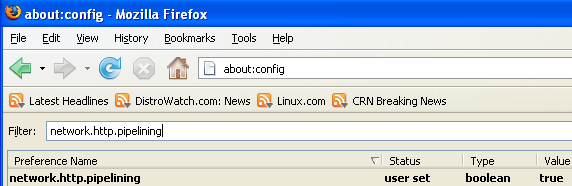
In the filter bar type network.http.pipelining
You should see the following screen

Normally it says " false " under value field , Double click it so it becomes " true ".
Once you finished this you should see the following screen.
Tip2
In the filter bar again and type network.http.pipelining.maxrequests
Once it Opens You should see the following screen

Default it says 4 under value field and you need to change it to 8
Once you finished this you should see the following screen.

Tip3
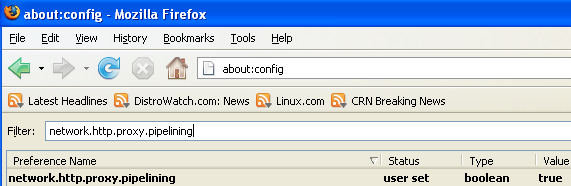
Go to the filter bar again and type network.http.proxy.pipelining
Once it Opens You should see similar to the following screen

Normally it says " false " under value field , Double click it so it becomes " true ".
Once you finished this you should see the following screen.
Tip4
Go to the filter bar again and type network.dns.disableIPv6
Once it Opens You should see the following screen

Normally it says " false " under value field , Double click it so it becomes " true ".
Once you finished this you should see the following screen.

Tip5
Go to the filter bar again and type plugin.expose_full_path
Once it Opens You should see the following screen

Normally it says " false " under value field , Double click it so it becomes " true ".
Once you finished this you should see the following screen.

Tip6
Now you need to Create new Preference name with interger value for this got to Right click -> New -> Integer
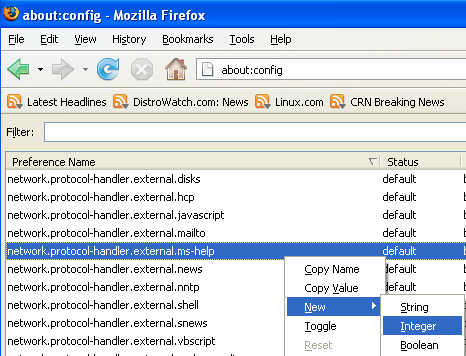
Once it opens you should see the following screen

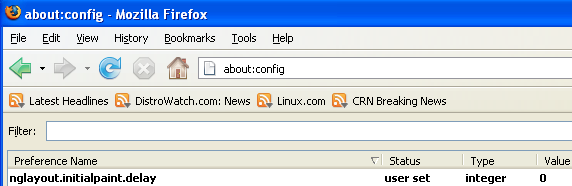
Here you need to type nglayout.initialpaint.delay and click ok

Now you need to enter 0 in value filed and click ok

Once you finished this you should see the following screen.
Tip7
Now you need to Create one more Preference name with interger value for this got to Right click -> New -> Integer
Once it opens you should see the following screen
Here you need to type content.notify.backoffcount and click ok

Now you need to enter 5 in value filed and click ok
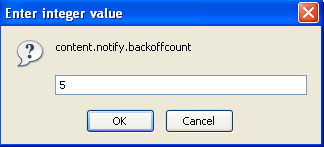
Once you finished this you should see the following screen.

Tip8
Now you need to Create one more Preference name with interger value for this got to Right click -> New -> Integer
Once it opens you should see the following screen
Here you need to type ui.submenuDelay and click ok

Now you need to enter 0 in value filed and click ok

Once you finished this you should see the following screen.

Some more Tweaks
Enable the spellchecker for inputfields and textareas (default is textareas only)
layout.spellcheckDefault=2
Open lastfm://-links directly in amarok
network.protocol-handler.app.lastfm=amarok
network.protocol-handler.external.lastfm=true
Firefox Memory Leak Fix
Open a new tab. Type "about:config" without quotes into the address bar and hit enter/click Go.
Right-click anywhere, select New, then Integer. In the dialog prompt that appears, type:
browser.cache.memory.capacity
Click OK. Another dialog prompt will appear. This is where you decide how much memory to allocate to Firefox. This depends on how much RAM your computer has, but generally you don't want to allocate too little (under 8MB), but if you allocate too much, you might as well not do this. A good recommended setting is 16MB. If you want 16MB, enter this value into the dialog prompt:
16384
(Why 16384 instead of 16000? Because computers use base-12 counting. Thus 16 megabytes = 16384 bytes. Likewise, if you want to double that and allocate 32MB, you'd enter 32768.)
Click OK to close the dialog box, then close all instances of Firefox and restart. If your Firefox still uses the same amount of memory, give it a few minutes and it should slowly clear up. If that fails, try a system reboot.
Now your Firefox will now be 3 -- 30 times faster in loading pages.
just a little question,where i work the it department has put a web browser proxy killer download on some of the network computers,how do i get around this problem so we can start browsing in the internet again
holy crap! This works great! The memory cache tip was one I hadn’t heard about before. Will definitely have to try that out on my memory-sieve Windows laptop at work on Monday.
thanx for the tips. keep rockin `en happy browsing 🙂
Fasterfox has memory leaks so its best if you went with these suggestions which are totally awesome and ill do this for my FF at home which is on a mac
Are all of this tips safe? are there any side effects? is there any memory leak?
I added content.max.tokenizing.time but accidentally hit boolean instead of integer now i have two of these entry’s in the about:config. how do i deleted them and adde the correct integer instead?
Some more Tweaks
Enable the spellchecker for inputfields and textareas (default is textareas only)
layout.spellcheckDefault=2
Open lastfm://-links directly in amarok
network.protocol-handler.app.lastfm=amarok
network.protocol-handler.external.lastfm=true
Firefox Memory Leak Fix
Open a new tab. Type “about:config” without quotes into the address bar and hit enter/click Go.
I didn’t understand from here .. [:o]
Add to the above tips DNSMasq per http://www.ubuntugeek.com/local-dns-cache-for-faster-browsing-on-ubuntu-machine.html (it adds local DNS to your PC) and you can also save DNS lookup time for web sites your visit repeatedly. Now you have a Firefox rocketsled!
Thank you for sharing these tweaks. If I may suggest the post could be a little clearer at point # 6 where I think you mean to open a new tab and enter about:config and then scroll down to network-protocol-handler.external.ms-help. Same with point #8. Thanks again.
can somebody tell me if the huge memory consumption works on windows? it seems that some ppl didnt succeed at this, thnx
This is really a bummer. You would expect it to be like this right out of the box, and not have to spend hours changing it, every time you install firefox.
Thanks to this article, thanks to member responses, I was able to find a solution to the problems that people suffering them.
I’m lost at the last part at some more tweaks as well. How to enable the spellcheker and what do I need to do for this command “open lastfm://-links directly in amarok? So, I’m stopping at that point. Could you please explain a little bit.
Thanks,
Can the about: config file be saved so that you just reload it with all the tweaks
thanks
Thanks for this list. However, it would have saved me time Googling if you would have described what each setting does. After all was done, I noticed that you did post a small explanation in the comments, but why not put it in the actual post were people will see and benefit from it?
I was also curious about why you used WinXP for screenshots on an Ubuntu blog.
Anybody tried this on Firefox 3 beta 5?
Your tips to speed up Firefox are very useful.
Thanks.
I’ve been using the new Firefox 3 beta that came with Ubuntu Hardy Heron. I’ve got 2gb of RAM so I changed the memory cache to 102400.
This is because when I put
about:cache
in the address bar it showed it was using more memory than I had available! It’s made a huge difference to page loading (along with all the other tweaks). Thanks!!
alot of these tweaks only apply to FF 2 and not 3
yeay it is faster but it stuffed up my gmail.
it is in a very little box on the left top conner, how do i fix it.
and youtube stuffed up a bit the same to 1/2 of the time.
Firefox 3.0 works on this too… because the internal development Gecko being upgraded to 1.9 therefore they are using the same engine… just that 1.9 have numerous fixes that resolve memory leaks and improve alot of security issues… + stability
Ding ding dang a-dang a-long ling long! Jesus built my hotrod!
I checked my speed on that stopwatch site before doing the tweaks, and afterwards it was TWICE as fast. The difference is VERY noticeable as I browse around. Now I feel like the price I pay for DSL is justified. Thank you, thank you, THANK YOU!!
thanks 1000 times. its 1000 times faster.
very noticeable, without stopwatch, , ,
click>boom.ready
WOW thank-you so muck, It worked for me like a charm
Does these tweaks still work for Firefox 3?
Yes i think they work with 3.x.x 🙂
Helloooo..
Thanks for the tips, but please help me..
When i recheck again the parameter, Why “nglayout.initialpaint.delay”
still “100” ?
I already set to “0” the reopen the browser then the calue still back to “100”.
Any missing with me???? Help please…
thanks dude,,,,,,,, it really worksout
really thanks!!