

Sponsored Link
Mozilla Firefox is a cross-platform browser, providing support for various versions of Microsoft Windows, Mac OS X, and Linux. Although not officially released for certain operating systems, the freely available source code works for many other operating systems, including FreeBSD,OS/2, Solaris, SkyOS, BeOS and more recently, Windows XP Professional x64 Edition.
I am providing some Very Useful Tips to speedup your Firefox.
In your location bar, type about:config
Once it Opens You should see similar to the following screen

Tip1
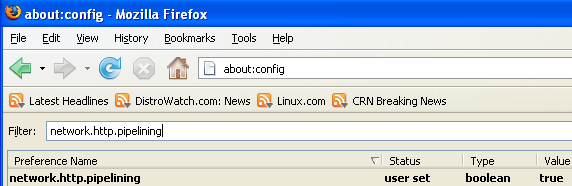
In the filter bar type network.http.pipelining
You should see the following screen

Normally it says " false " under value field , Double click it so it becomes " true ".
Once you finished this you should see the following screen.
Tip2
In the filter bar again and type network.http.pipelining.maxrequests
Once it Opens You should see the following screen

Default it says 4 under value field and you need to change it to 8
Once you finished this you should see the following screen.

Tip3
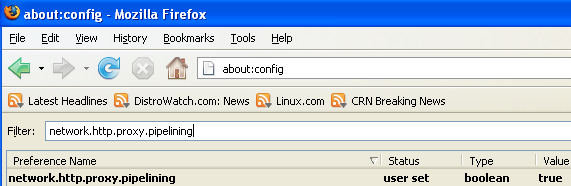
Go to the filter bar again and type network.http.proxy.pipelining
Once it Opens You should see similar to the following screen

Normally it says " false " under value field , Double click it so it becomes " true ".
Once you finished this you should see the following screen.
Tip4
Go to the filter bar again and type network.dns.disableIPv6
Once it Opens You should see the following screen

Normally it says " false " under value field , Double click it so it becomes " true ".
Once you finished this you should see the following screen.

Tip5
Go to the filter bar again and type plugin.expose_full_path
Once it Opens You should see the following screen

Normally it says " false " under value field , Double click it so it becomes " true ".
Once you finished this you should see the following screen.

Tip6
Now you need to Create new Preference name with interger value for this got to Right click -> New -> Integer
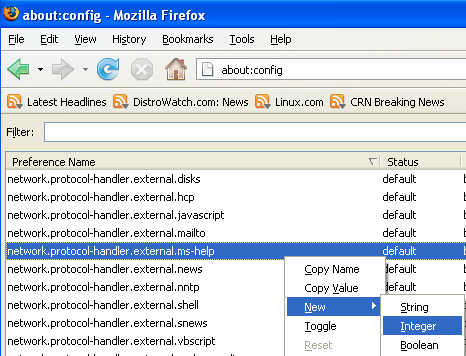
Once it opens you should see the following screen

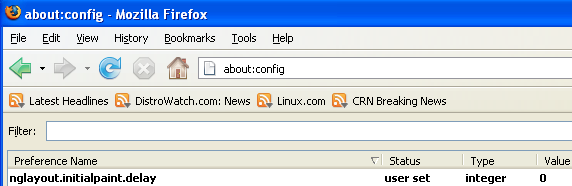
Here you need to type nglayout.initialpaint.delay and click ok

Now you need to enter 0 in value filed and click ok

Once you finished this you should see the following screen.
Tip7
Now you need to Create one more Preference name with interger value for this got to Right click -> New -> Integer
Once it opens you should see the following screen
Here you need to type content.notify.backoffcount and click ok

Now you need to enter 5 in value filed and click ok
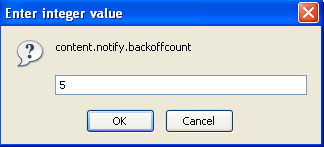
Once you finished this you should see the following screen.

Tip8
Now you need to Create one more Preference name with interger value for this got to Right click -> New -> Integer
Once it opens you should see the following screen
Here you need to type ui.submenuDelay and click ok

Now you need to enter 0 in value filed and click ok

Once you finished this you should see the following screen.

Some more Tweaks
Enable the spellchecker for inputfields and textareas (default is textareas only)
layout.spellcheckDefault=2
Open lastfm://-links directly in amarok
network.protocol-handler.app.lastfm=amarok
network.protocol-handler.external.lastfm=true
Firefox Memory Leak Fix
Open a new tab. Type "about:config" without quotes into the address bar and hit enter/click Go.
Right-click anywhere, select New, then Integer. In the dialog prompt that appears, type:
browser.cache.memory.capacity
Click OK. Another dialog prompt will appear. This is where you decide how much memory to allocate to Firefox. This depends on how much RAM your computer has, but generally you don't want to allocate too little (under 8MB), but if you allocate too much, you might as well not do this. A good recommended setting is 16MB. If you want 16MB, enter this value into the dialog prompt:
16384
(Why 16384 instead of 16000? Because computers use base-12 counting. Thus 16 megabytes = 16384 bytes. Likewise, if you want to double that and allocate 32MB, you'd enter 32768.)
Click OK to close the dialog box, then close all instances of Firefox and restart. If your Firefox still uses the same amount of memory, give it a few minutes and it should slowly clear up. If that fails, try a system reboot.
Now your Firefox will now be 3 -- 30 times faster in loading pages.
Thank You Man For this Imporatante Article
nice info i will try in my firefox,my firefox is to long time to load
Hi. Thank you so so so much for this tips! They are amazing. I used to wait for my FF to load, but now it’s like a magic! Viva open source and viva community! Thank you!!!
hey thanks for the tips! it definitely improved my browser.
Can someone list all these tweeks in an easy to read list for us novices? It would be great if a guru could make one clear list of all the above tweeks that work so we could simply follow the new list.
I’m a newbie user of Ubuntu Intrepid and Linux in general (2 days). I did everything you suggested about speeding up Firefox, including adding “network.dns.disableIPv6” preference name. However things really didn’t speed up much. As someone else mentioned, Google’s webpage was taking almost 10 seconds to load up. Being the tinkerer I am, I noticed the following line (below the one I added for “network.dns.disableIPv6”)
“network.dns.ipv4onlydomains”. There was no value set for this entry. I typed “TRUE” for this entry and now MOST webpages load a heck of a lot faster (Google loads in about 2 seconds). I have no idea what this did, but it helped. It seems to me that Firefox is still slow on DNS lookup and Graphics rendering is a little slow. I’ve got an nVidia video card (loaded up the lastest recommended driver-version 177). With the help of people like you, I’ll either make it faster or crash it trying. Thank You!
I’ll be dang, Gordon’s observation of the network.dns.ipv4onlydomains parameter worked for me also. In fact its the only parameter that really made a huge difference for me. I’ve been scratching my head on why the google search page took literally seconds to load while under windows its instant. Snappy now 🙂
Mozilla/5.0 (X11; U; Linux x86_64; en-US; rv:1.9.0.4) Gecko/2008111319 Ubuntu/8.10 (intrepid) Firefox/3.0.4
will this work in iceweasel?
I’d say so.. only one way to find out
There was no value set for this entry. I typed “TRUE” for this entry and now MOST webpages load a heck of a lot faster.
Great post! Firefox was hogging my memory ridiculously. Nice fix. (Everything really does load faster)
network.protocol-handler.app.lastfm=amarok
network.protocol-handler.external.lastfm=true
I was a little confused about these. Are these supposed to be entered as a string or boolian?
AND I’ve made a mistake with one of these but I cant see anyway to remove the entry. Can someone tell me how to delete it (or at least change from string to boolian)
Thanks… this works great
I did this and it is as fast as hell but all my buttons have shrunk and the menus have all permernantly opened, any ideas why this has happened. I am using firefox 3
I’ve tried it and it rocks! Thanks a lot! It’s really useful!
An error:
Computers don’t use “base-12 numbering.” It is helpful, however, for us to think that they use base 2 or base 16 at times, depending on the application. (16384 is not divisible by 12, but it is a power of 2.)
Thanks for the tips.
Thanks for the tips. Works very well.
Thanks for the tweaks which I’ve followed. But my browsing seems to have slowed down when downloading is in progress. A page opens up only after the download is done. Can you help me with this please?
P.S.
I am using firefox 3
We recently purchased a Ubuntu based laptop for my daughter which uses Firefox for the browser. When she goes to open http://www.disney.com and some other sites, there is a big grayed out arrow that shows up over most of the screen. Is there a way to disable that or a way to go back to the old Firefox brower (before 3.0) which I didn’t like either but at least she could get to her games with it. Thanks for your help
I think you need to install flashplayer to display full website
Hi ..
from where I can get the filter bar ..??
I could not find it ???
http://fasterfox.mozdev.org/ is not compitible with ff 3.0.7
@78 you need to set your max:
network.http.max-connections
network.http.max-connections-per-server
network.http.max-persistent-connections-per-proxy
network.http.max-persistent-connections-per-server
up a few…
my google searches load in .10 seconds!!!
scrolling is WAY faster and very clever to the 2day user who noticed ipv4 only setting… im confused am i meant to enter an integer or boolean and what number am i meant to enter?
thanks for the tips. I think they’re working fine. But can anyone help me with my problem? Every time I click a link or click Go on the Address Bar, Firefox responds too slowly in fact it would be in a Not Responding state for a few seconds. how can i fix this problem? thanks
i have a mistake dude,
i make an
integer
5
how can i delete the the integer?
please help me
This adjustments have REALLY increased the speed of Firefox for me. And just in time, too. I actually got to this page as I was investigating moving to a different browser (and sacrificing my Firefoxiness) because of the slowness of my FF experience after moving to Ubuntu Intrepid.
Particularly helpful was Gordon’s “network.dns.ipv4onlydomains” comment. Thanks to all! FF FTW!!
tank u man i lov u
its tru my boy muhaaaa…
nope!i did all the changes as u said.but my firefox on hardy infact slowed down.may be it is because i am using wireless network.can u help me with that.its very slow now…
also can u explain
“Open lastfm://-links directly in amarok
network.protocol-handler.app.lastfm=amarok
network.protocol-handler.external.lastfm=true”
if i dont do the above three changes wil it be slower?if yes can u please explain them in detail?
Could someone please help me out with FF3 crashing on my Ubuntu Intrepid…mostly w Flash n Java.I did all updates and then thats when started acting crappy. Help Anyone? Thx in advance.