

Sponsored Link
Mozilla Firefox is a cross-platform browser, providing support for various versions of Microsoft Windows, Mac OS X, and Linux. Although not officially released for certain operating systems, the freely available source code works for many other operating systems, including FreeBSD,OS/2, Solaris, SkyOS, BeOS and more recently, Windows XP Professional x64 Edition.
I am providing some Very Useful Tips to speedup your Firefox.
In your location bar, type about:config
Once it Opens You should see similar to the following screen

Tip1
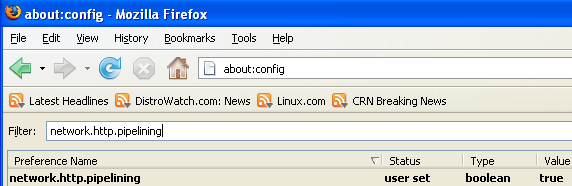
In the filter bar type network.http.pipelining
You should see the following screen

Normally it says " false " under value field , Double click it so it becomes " true ".
Once you finished this you should see the following screen.
Tip2
In the filter bar again and type network.http.pipelining.maxrequests
Once it Opens You should see the following screen

Default it says 4 under value field and you need to change it to 8
Once you finished this you should see the following screen.

Tip3
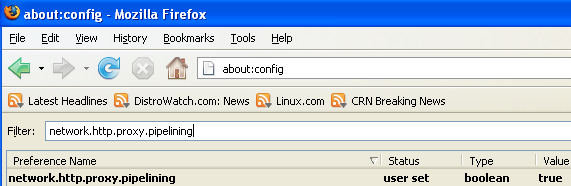
Go to the filter bar again and type network.http.proxy.pipelining
Once it Opens You should see similar to the following screen

Normally it says " false " under value field , Double click it so it becomes " true ".
Once you finished this you should see the following screen.
Tip4
Go to the filter bar again and type network.dns.disableIPv6
Once it Opens You should see the following screen

Normally it says " false " under value field , Double click it so it becomes " true ".
Once you finished this you should see the following screen.

Tip5
Go to the filter bar again and type plugin.expose_full_path
Once it Opens You should see the following screen

Normally it says " false " under value field , Double click it so it becomes " true ".
Once you finished this you should see the following screen.

Tip6
Now you need to Create new Preference name with interger value for this got to Right click -> New -> Integer
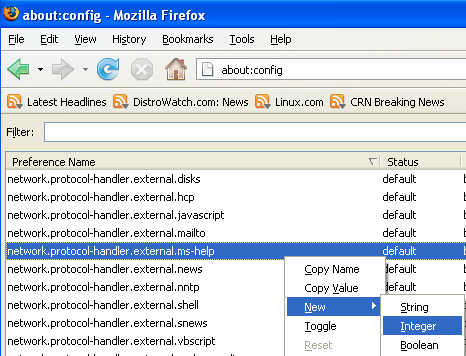
Once it opens you should see the following screen

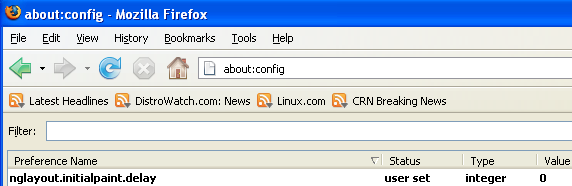
Here you need to type nglayout.initialpaint.delay and click ok

Now you need to enter 0 in value filed and click ok

Once you finished this you should see the following screen.
Tip7
Now you need to Create one more Preference name with interger value for this got to Right click -> New -> Integer
Once it opens you should see the following screen
Here you need to type content.notify.backoffcount and click ok

Now you need to enter 5 in value filed and click ok
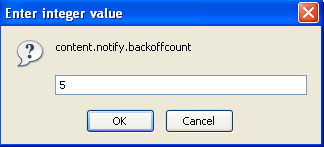
Once you finished this you should see the following screen.

Tip8
Now you need to Create one more Preference name with interger value for this got to Right click -> New -> Integer
Once it opens you should see the following screen
Here you need to type ui.submenuDelay and click ok

Now you need to enter 0 in value filed and click ok

Once you finished this you should see the following screen.

Some more Tweaks
Enable the spellchecker for inputfields and textareas (default is textareas only)
layout.spellcheckDefault=2
Open lastfm://-links directly in amarok
network.protocol-handler.app.lastfm=amarok
network.protocol-handler.external.lastfm=true
Firefox Memory Leak Fix
Open a new tab. Type "about:config" without quotes into the address bar and hit enter/click Go.
Right-click anywhere, select New, then Integer. In the dialog prompt that appears, type:
browser.cache.memory.capacity
Click OK. Another dialog prompt will appear. This is where you decide how much memory to allocate to Firefox. This depends on how much RAM your computer has, but generally you don't want to allocate too little (under 8MB), but if you allocate too much, you might as well not do this. A good recommended setting is 16MB. If you want 16MB, enter this value into the dialog prompt:
16384
(Why 16384 instead of 16000? Because computers use base-12 counting. Thus 16 megabytes = 16384 bytes. Likewise, if you want to double that and allocate 32MB, you'd enter 32768.)
Click OK to close the dialog box, then close all instances of Firefox and restart. If your Firefox still uses the same amount of memory, give it a few minutes and it should slowly clear up. If that fails, try a system reboot.
Now your Firefox will now be 3 -- 30 times faster in loading pages.
to d:
Have you upgraded flash?
And how about download the binary directly from mozilla.org and extract the tar ball in your $HOME directory and start from there? (That way, you won’t have a binary file from the previous FF that is possibly causing the crash)
that grey arrow means its a flash site/intro (there should be a skip intro button, which there doesnt seem to be, evil disney), you need to install flash plugin, easy to do:
go to http://get.adobe.com/flashplayer/ and download flash 10 deb, then double click on it to install it, restart firefox, voila.
u might also want to install flashblock extension in firefox addons, to only play flash when u click arrow, this will get rid of flash spam. adblock too is great 🙂
what about:
security.enable_ssl2
browser.cache.disk_cache_ssl
javascript.options.jit.chrome(shiretoko & minefield)
network.http.pipelining.ssl
zoom.minPercent
alex.
Is it work to someone?
does any body try it/???
thanks a million man! its been a whole day that I have been trying to find a way to get youtube to work properly on firefox. I tried everything! At the end, it was your advice that worked! Great stuff dude! thanks again”
by the way, I use ubuntu 9.04
put network.http.pipelining.maxrequests up to 30 It works !!!
Very good technique to increase the speed of firefox. But I use differently, I created a file called user.js with user_pref ( “name of the key, value), and save in the firefox profile folder. / home/user/.mozilla/firefox/xxxxx.default
Eg this is my config:
user_pref(“network.http.pipelining”, true);
user_pref(“network.http.proxy.pipelining”, true);
user_pref(“network.http.pipelining.maxrequests”, 20);
user_pref(“content.notify.backoffcount”, 5);
user_pref(“plugin.expose_full_path”, true);
user_pref(“ui.submenuDelay”, 0);
user_pref(“content.interrupt.parsing”, true);
user_pref(“content.max.tokenizing.time”, 2250000);
user_pref(“content.notify.interval”, 750000);
user_pref(“content.notify.ontimer”, true);
user_pref(“content.switch.threshold”, 750000);
user_pref(“content.notify.backoffcount”, 5);
user_pref(“nglayout.initialpaint.delay”, 0);
user_pref(“network.http.max-connections”, 48);
user_pref(“network.http.max-connections-per-server”, 16);
user_pref(“network.http.max-persistent-connections-per-proxy”, 16);
user_pref(“network.http.max-persistent-connections-per-server”, 8);
user_pref(“browser.cache.memory.capacity”, 32768);
user_pref(“browser.cache.disk.capacity”, 15000);
user_pref(“browser.turbo.enabled”, true);
user_pref(“network.dns.disableIPv6”, true);
user_pref(“browser.urlbar.clickSelectsAll”, true);
user_pref(“browser.urlbar.autoFill”, true);
I prefer to use this, because if something goes wrong or does not match the desired, just edit the file or simply delete it and the firefox go back to default value.
got lost at tip 6, where does it begin fr tip 6?
everythings ok now, very good job! just copy paste guys- very easy to follow: tip at tip 6 just re-enter about:config
holly crap this tip is amazing!!!!!!
it worked for me amazingly well and now I can run hulu without so much as a pause glitch, thank-you so much!! =)
wow thanks for the great tip man.
my firefox browser now loads super fast!! 😀
i love it ^^
Thanx for this wonderful tips. It really works on my Ubuntu(Jaunty).
Keep up the good work dude.
didnt help me , i must be missing something and as sumone said from tip 6 u jump and we dont see the same thing, so where you are clicking we have to search for the same place…help./.
i used a bench marking tool and the performance actually drop doing this. you don’t really have to perform any of this steps just upgrade to 3.5.
Thanks, I popped it in word for word, and it really did make a difference.
Now if only you could magically speed up my internet access !
computers use base-12 counting? news to me!
It would be more useful if the author explained what exactly each step does, so people can choose what to change and what not. It seems that the author simply copied the entries from some other source without knowing what are doing. By the way, in base 12, 16384 makes no sense.
thanks, i got really speed up.
thanks bro, it really works 🙂
sorry may seem like a amateur question but would this work on PS3 Xubuntu also? its killin me i assume its cos it only uses the ICED TEA java runtime thing… sorry i sound thick as crap but im a true linux newcomer, many thanks 😛
I followed it step-by-step and it really worked for me. Just open another tab to get through the more difficult steps, copy and paste. Just make sure you know the integer value (the number) before you switch back to make the new integer.
I’ve tried a few “tips & tricks” to speed up firefox but this one really seems to work.
ff3.5 on netbook remix 9.04 (dellmini9)
I printed out the instructions and followed them to the letter.
I skipped the layout.spellcheckdefault, because my screen did not look like the print out.
I did everything else and after two weeks of suffering and $200 of unsuccessful purchases, I am finally happy.
I installed firefox3.5.2 4 times. Thank you very much.
Please download and try this terminal app
http://www.elart.it/ubuntu/mb_ubuntu_optimizer/index_en.php
that analyze your system and give you Ubuntu optimization terminal commands to make your Ubuntu running fast…
To get all this tips done… and Firefox auto optimization and vacuum of the internal databases.
Hope this helps
Have you tried Swift Fox?
tanxs u frickin geek l8taz
Thanks. Its very useful information!
Hi Geek. When I get to nglayout.initialpaint.delay and enter a 0 it goes back to plugin.expose_full_path
Again and again
thanks bro,i really work!