

Sponsored Link
Mozilla Firefox is a cross-platform browser, providing support for various versions of Microsoft Windows, Mac OS X, and Linux. Although not officially released for certain operating systems, the freely available source code works for many other operating systems, including FreeBSD,OS/2, Solaris, SkyOS, BeOS and more recently, Windows XP Professional x64 Edition.
I am providing some Very Useful Tips to speedup your Firefox.
In your location bar, type about:config
Once it Opens You should see similar to the following screen

Tip1
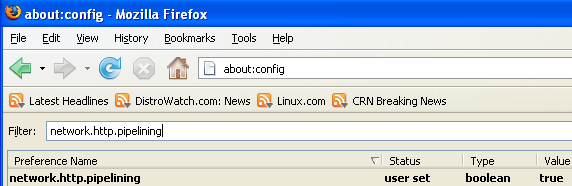
In the filter bar type network.http.pipelining
You should see the following screen

Normally it says " false " under value field , Double click it so it becomes " true ".
Once you finished this you should see the following screen.
Tip2
In the filter bar again and type network.http.pipelining.maxrequests
Once it Opens You should see the following screen

Default it says 4 under value field and you need to change it to 8
Once you finished this you should see the following screen.

Tip3
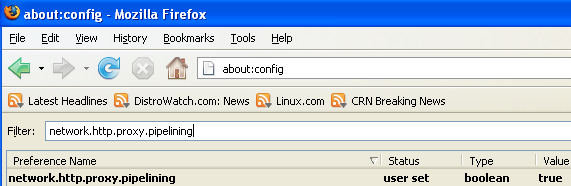
Go to the filter bar again and type network.http.proxy.pipelining
Once it Opens You should see similar to the following screen

Normally it says " false " under value field , Double click it so it becomes " true ".
Once you finished this you should see the following screen.
Tip4
Go to the filter bar again and type network.dns.disableIPv6
Once it Opens You should see the following screen

Normally it says " false " under value field , Double click it so it becomes " true ".
Once you finished this you should see the following screen.

Tip5
Go to the filter bar again and type plugin.expose_full_path
Once it Opens You should see the following screen

Normally it says " false " under value field , Double click it so it becomes " true ".
Once you finished this you should see the following screen.

Tip6
Now you need to Create new Preference name with interger value for this got to Right click -> New -> Integer
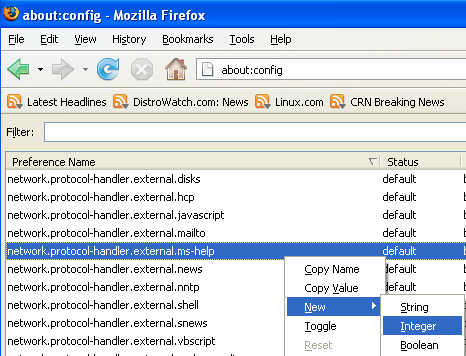
Once it opens you should see the following screen

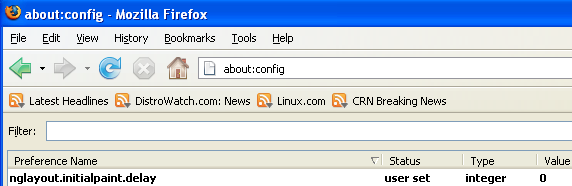
Here you need to type nglayout.initialpaint.delay and click ok

Now you need to enter 0 in value filed and click ok

Once you finished this you should see the following screen.
Tip7
Now you need to Create one more Preference name with interger value for this got to Right click -> New -> Integer
Once it opens you should see the following screen
Here you need to type content.notify.backoffcount and click ok

Now you need to enter 5 in value filed and click ok
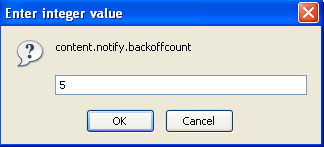
Once you finished this you should see the following screen.

Tip8
Now you need to Create one more Preference name with interger value for this got to Right click -> New -> Integer
Once it opens you should see the following screen
Here you need to type ui.submenuDelay and click ok

Now you need to enter 0 in value filed and click ok

Once you finished this you should see the following screen.

Some more Tweaks
Enable the spellchecker for inputfields and textareas (default is textareas only)
layout.spellcheckDefault=2
Open lastfm://-links directly in amarok
network.protocol-handler.app.lastfm=amarok
network.protocol-handler.external.lastfm=true
Firefox Memory Leak Fix
Open a new tab. Type "about:config" without quotes into the address bar and hit enter/click Go.
Right-click anywhere, select New, then Integer. In the dialog prompt that appears, type:
browser.cache.memory.capacity
Click OK. Another dialog prompt will appear. This is where you decide how much memory to allocate to Firefox. This depends on how much RAM your computer has, but generally you don't want to allocate too little (under 8MB), but if you allocate too much, you might as well not do this. A good recommended setting is 16MB. If you want 16MB, enter this value into the dialog prompt:
16384
(Why 16384 instead of 16000? Because computers use base-12 counting. Thus 16 megabytes = 16384 bytes. Likewise, if you want to double that and allocate 32MB, you'd enter 32768.)
Click OK to close the dialog box, then close all instances of Firefox and restart. If your Firefox still uses the same amount of memory, give it a few minutes and it should slowly clear up. If that fails, try a system reboot.
Now your Firefox will now be 3 -- 30 times faster in loading pages.
lol @ all u idiot n00bs! Even funnier are the n00bs calling other people who know what theyre talking about n00bs..but then have no idea what http.pipelining is or what theyre doing to their browsers.
This is old news and it will not sustain speed in your browser in the longrun. Wanna speed things up?
Windows:
Run CCleaner once a week and clean up temp files and empty/unneeded registry keys. Disable some unneeded services in your system, disable toolbars in your browsers. Clear cookies at shutdown.
Linux:
Use minimum addons, BleachBit once in awhile to clean built up temp files, Disable toolbars, Clear cookies at shutdown and clear all history, coookies,etc on browser shutdown
Your “speed up firefox” tips are dazzling. I am getting messages that my Internet Explorer 6 is obsolete, so I am considering getting Firefox. My PC is a Dell 8200, OS is Windows XP, new 1GB of memory, new 80GB harddrive, Pentium 4 CPU 1.70GHz.Firefox will be an improvment. But is it a wise choice? Will your tips work on the PC I have described? Thank you!
Thanq Very much, it’s working….
Kanna….
?I just upgraded a Jaunty -> Karmic -> Lucid and I was bummed how slow firefox was in Lucid. I did everything in this tutorial and firefox works like it used to in Jaunty!
awesome.
Tweak Using Pipelining method seems good but I didn’t understand the tweaking with protocol handler..
Thanks, It also works on Windows (all versions I tested ;)) and will work on any computer.
Thanks a lot! I used these tips on my XP Pro operating system and firefox is running faster than ever!
P.S. lame- you’re a jackass. (lol, idiot, noob, blah blah blah)
I used the settings you said above but still can’t find any improvement. I am using dial up connection.
Do u know if the above settings are better than fastestfox add on ?
I have succesfully used this method on my Windows 7 computer running Mozilla Firefox ver. 3.6.4
I wonder why admin can approve this very very old news! Since my article about “best firefox add-ons” was not approved!!!
So?
@lame: But this Tut is not about SpeedUp u OS !!!
Thanks for this ! i used it also succesfully on my win7.
The tweaks made my old dell centron laptop blow my new macbook pro away.. for real
i configured my firefox till tip 5 where one types in “plugin.expose_full_path” in the filter bar but since tip 6 involves right clickin i right clicked d empty space n did d rest dat were stated but got sth diff frm the screen shot showing what would be seen next so i stopped.what is d way 4ward pls?
Hey, I tried your tips and they worked great! I’ve always been pissed when people talk about how Firefox is faster, cause it sure didn’t seem that way. But now it responds lightning-quick to my clicks. Thanks 🙂
Hey Thanx tried your tips working gre8
i did as per the screen shot i hope it will work
does this work on firefox 4 beta???
Thanks for this ! i used it also succesfully on my win7
I did it run fast but no more video streaming ie utube vimeo ect…:(
thanks buddy. now my firefox is really fast
I’ve got problem with FF memory leak. It makes my PC running slowly. I hope this tips can help me to solve the problem. thanks
thanks , its really worked….
@lame : u idiot, this is not OS speed up. Shut up and do ur own noobing elsewhere. u know too much about http pipelining huh ? then start ur own website and pipeline ur shit.
You’re the best UbuntuGeek! Thanks a lot for these instructions. Surfing has become so much more enjoyable 🙂
heyy thanks!! really Good! thank you
thanks solved the problem
I asume that this website is strictly for Ubuntu users, so why the screenshots are from Windows?
thanks..for your tips…
Wow! Works great! I went from painfully slow to blazing fast. Thanks!