

Sponsored Link
Mozilla Firefox is a cross-platform browser, providing support for various versions of Microsoft Windows, Mac OS X, and Linux. Although not officially released for certain operating systems, the freely available source code works for many other operating systems, including FreeBSD,OS/2, Solaris, SkyOS, BeOS and more recently, Windows XP Professional x64 Edition.
I am providing some Very Useful Tips to speedup your Firefox.
In your location bar, type about:config
Once it Opens You should see similar to the following screen

Tip1
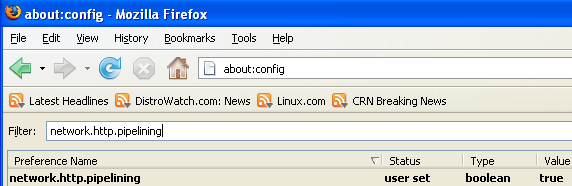
In the filter bar type network.http.pipelining
You should see the following screen

Normally it says " false " under value field , Double click it so it becomes " true ".
Once you finished this you should see the following screen.
Tip2
In the filter bar again and type network.http.pipelining.maxrequests
Once it Opens You should see the following screen

Default it says 4 under value field and you need to change it to 8
Once you finished this you should see the following screen.

Tip3
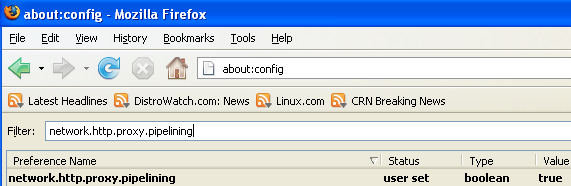
Go to the filter bar again and type network.http.proxy.pipelining
Once it Opens You should see similar to the following screen

Normally it says " false " under value field , Double click it so it becomes " true ".
Once you finished this you should see the following screen.
Tip4
Go to the filter bar again and type network.dns.disableIPv6
Once it Opens You should see the following screen

Normally it says " false " under value field , Double click it so it becomes " true ".
Once you finished this you should see the following screen.

Tip5
Go to the filter bar again and type plugin.expose_full_path
Once it Opens You should see the following screen

Normally it says " false " under value field , Double click it so it becomes " true ".
Once you finished this you should see the following screen.

Tip6
Now you need to Create new Preference name with interger value for this got to Right click -> New -> Integer
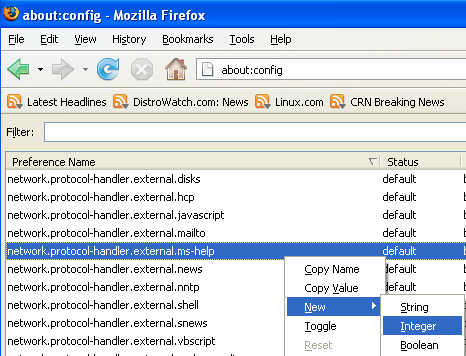
Once it opens you should see the following screen

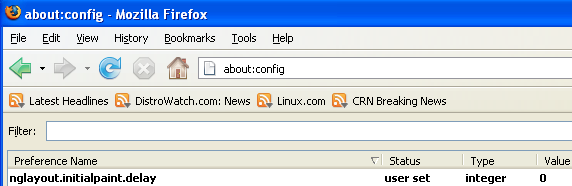
Here you need to type nglayout.initialpaint.delay and click ok

Now you need to enter 0 in value filed and click ok

Once you finished this you should see the following screen.
Tip7
Now you need to Create one more Preference name with interger value for this got to Right click -> New -> Integer
Once it opens you should see the following screen
Here you need to type content.notify.backoffcount and click ok

Now you need to enter 5 in value filed and click ok
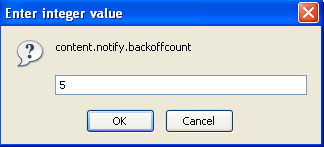
Once you finished this you should see the following screen.

Tip8
Now you need to Create one more Preference name with interger value for this got to Right click -> New -> Integer
Once it opens you should see the following screen
Here you need to type ui.submenuDelay and click ok

Now you need to enter 0 in value filed and click ok

Once you finished this you should see the following screen.

Some more Tweaks
Enable the spellchecker for inputfields and textareas (default is textareas only)
layout.spellcheckDefault=2
Open lastfm://-links directly in amarok
network.protocol-handler.app.lastfm=amarok
network.protocol-handler.external.lastfm=true
Firefox Memory Leak Fix
Open a new tab. Type "about:config" without quotes into the address bar and hit enter/click Go.
Right-click anywhere, select New, then Integer. In the dialog prompt that appears, type:
browser.cache.memory.capacity
Click OK. Another dialog prompt will appear. This is where you decide how much memory to allocate to Firefox. This depends on how much RAM your computer has, but generally you don't want to allocate too little (under 8MB), but if you allocate too much, you might as well not do this. A good recommended setting is 16MB. If you want 16MB, enter this value into the dialog prompt:
16384
(Why 16384 instead of 16000? Because computers use base-12 counting. Thus 16 megabytes = 16384 bytes. Likewise, if you want to double that and allocate 32MB, you'd enter 32768.)
Click OK to close the dialog box, then close all instances of Firefox and restart. If your Firefox still uses the same amount of memory, give it a few minutes and it should slowly clear up. If that fails, try a system reboot.
Now your Firefox will now be 3 -- 30 times faster in loading pages.
Thanks, I got to tip 5. Then on tip 6 I did not get the result of “nglayout.initialpaint.delay user set integer 0”, my result was “plugin.expose_full_path user set boolean true”
I tried to repeat the tip, got the same result.
Then I went on to tip 7 where I got the same result as above again, i.e. “plugin.expose_full_path user set boolean true”
Then tried tip 8 but got a completely different screen.
The on “enable spellchecker”, where do I find spellchecker?
Tried to access “about.config” again but received “unable to find server” repeatedly.
Firefox is still browsing slow and still not responding to clicks on links in e-mails.
I checked my Firefox memory thing and it was somewhere around 65000…Is that bad? And why?
Hey the reason the last tip with the memory leak doesn’t work is because the WRONG VALUES are listed, as in they’re way too high. I imagine this is because Firefox actually sees the memory capacity in kilobytes and not bits so adjust the values accordingly (copy pasted from http://kb.mozillazine.org/Browser.cache.memory.capacity):
Physical RAM Memory Cache (in KB)
32 MB 2048
64 MB 4096
128 MB 8192
256 MB 14336
512 MB 22528
1 GB 32768
2 GB 45056
4 GB 59392
8 GB 75776
Oops, link got messed up there. Just remove the ) at the end if you want to look at it yourself.
so does this really work or not, because it looks like it can get screwed up and then the web browser will not work at all.
what is the simplest check to see how fast your pages load, and then decide for yourself if going faster is really necessary?
duh!! you guys just don’t know how to follow instructions or maybe you don’t understand basic instruction
i’m using it now and my mozilla became faster
I entered content.notice.backoffcount instead of notify. Is this bad? How do I delete the integer?
Thanks a lot im new to linux, I have followed your instructions,clear and concise,except for the spellcheck tweak, still trying to figure that one out.
Firefox is now superfast.
Cheers again
omg! my 2001 compaq presario desktop is brand new again! this really worked for me. video plays now, not choppy at all. thank you very much for taking the time to write these well written instructions. questioning why i had to do this at all – i thought ff was better than this…
Hi, I have followed all the above steps but my problem hasn’t been solved, i m using HP mini with windows 7 starter 1 GB RAM,
my problem is just the slow switching over multiple tabs, each time I go to another tab it takes a while (sluggish), or u can say the ‘click’ on the tab takes time to happen, the rest firefox is working perfect in speed.
Don’t know how to solve it, followed all these steps, still having same problem.
Second problem is how to stop the automatic ‘Get add-ons’ which can be seen in Tools>Add-ons>Get add-ons
Can anyone help pls?
Thanx for the advice dude…. really works, my browser doesn’t get on my nerves anymore
wooooooooow it really works for me even without tweaks billion of thanx for saving my time i test youtube running like water
Thanks, worked perfectly for me, one thing you left out was to switch the network.protocol-handler.external.ms-help to “true.” Saw that the screen shot had a t instead of an f, so worked out for me.
Hey, has anyone tried this with Firefox 4? Is it still applicable? Recommended?
This really works! I could tell instantly how much better the performance was. Thank you so much
My Firefox seems to be running slightly faster but is still much slower than Google Chrome. Chrome, on the other hand, often shows “not available” on sites that Firefox is able to access so I sort of try to get to where I want to be by using a mix of the two, still a bit frustrating.
after tips my firefox was in flames.very good speed and page load time.Thank you
“after tips my firefox was in flames.very good speed and page load time.Thank you”
And you are using Firefox 4?
Muito obrigado pelas dicas o meu Firefox ficou muito mais veloz
“Thanks by tips my Firefox stay very fast”
great tips 4 accelerating the Firefox
How do I go from here? I followed everything fine until I reached “Some more Tweaks” where the instruction was to enable the spellchecker for inputfields and textareas (default is textareas only) layout.spellcheckDefault=2.
It says “Open lastfm://-links directly in amarok”, now I have no idea what amarok is and where to find it or how to implement the rest of the tweaks:
network.protocol-handler.app.lastfm=amarok
network.protocol-handler.external.lastfm=true
Firefox Memory Leak Fix
Open a new tab. Type “about:config” without quotes into the address bar and hit enter/click Go.
Right-click anywhere, select New, then Integer. In the dialog prompt that appears, type:
browser.cache.memory.capacity
Click OK. Another dialog prompt will appear. This is where you decide how much memory to allocate to Firefox. This depends on how much RAM your computer has, but generally you don’t want to allocate too little (under 8MB), but if you allocate too much, you might as well not do this. A good recommended setting is 16MB. If you want 16MB, enter this value into the dialog prompt:
16384
(Why 16384 instead of 16000? Because computers use base-12 counting. Thus 16 megabytes = 16384 bytes. Likewise, if you want to double that and allocate 32MB, you’d enter 32768.)
Click OK to close the dialog box, then close all instances of Firefox and restart. If your Firefox still uses the same amount of memory, give it a few minutes and it should slowly clear up. If that fails, try a system reboot.
config setting working fast
How do I go from here? I followed everything fine until I reached “Some more Tweaks” where the instruction was to enable the spellchecker for inputfields and textareas (default is textareas only) layout.spellcheckDefault=2.
It says “Open lastfm://-links directly in amarok”, now I have no idea what amarok is and where to find it or how to implement the rest of the tweaks.
amarok is a program, i believe. that bit of tweaking is if you listen to music through the net while surfing
Thanks, i’m using it now and my mozilla became faster
Thanks Jason buseman, but not very helpful and with a hint of sarcsm…
Wow! Your tips works great man increased my firefox download speed to 50Kbp/s from 10Kbp/s.. Many Thanks!
it is working.. thanks a lot..
It’s now a pleasure to use Firefox.
Every tip worked first time for me.
Very helpful and time-saving. Thank you.
Tq….it really helps me a lot….and your explanation so clear…