

Sponsored Link
By default ubuntu will come with vino-server so it is very easy to configure to enable remote desktop sharing in your ubuntu machine.If you want to access ubuntu machine remotely you need to login in to your ubuntu system.
Important note :-
Remote Desktop will only work if there's a GNOME login session.Leaving your computer with an unattended GNOME login session is not secure and not recommended.
Some Tips
1) You can lock your screen using System--->Quit

Once you click on quit you should see the following screen here you need to select lockscreen

2) switch off your monitor when computer is left unattended
Configuring Remote Desktop
First you need to go to System -> Preferences -> Remote Desktop

Once it opens you should see the following screen

In the above screen you need to configure remote desktop preferences for sharing and security
For Sharing
you need to tick the box next to the following two options
Allow other users to view your desktop
Allow other users to control your desktop
For Security
you need to tick the box next to the following two options
Ask you for confirmation (If you tick this option some one need to click on allow from remote desktop once it connected if you don't want you can untick this option)
Require the user to enter this password:
Password: Specify the password

Connecting from Ubuntu Machine
Open your terminal from Applications--->Accessories--->Terminal and enter the following command
vncviewer -fullscreen 192.168.2.23:0
now you should see the following message asking for password enter the password after complete success you can see VNC authentication succeeded message and starting remote desktop
VNC viewer version 3.3.7 -- built Jul 4 2006 10:04:48
Copyright (C) 2002-2003 RealVNC Ltd.
Copyright (C) 1994-2000 AT&T Laboratories Cambridge.
See http://www.realvnc.com for information on VNC.
VNC server supports protocol version 3.7 (viewer 3.3)
Password:
VNC authentication succeeded
If you want to quit vncviewer
Press ‘F8' and select Quit viewer
Connecting from Windows machine
If you are trying to connect from your windows machine you need to install vncviewer of your choice i have installed from here http://www.realvnc.com/download.html.Install this program once you install this you can opem from start--->All programs--->RealVNC--->VNC Viewer 4--->Run VNC Viewer once it opens you should see the following screen here enter the remotemachine ipaddress:0 format and click ok

Now it will prompt for password enter your password and click ok

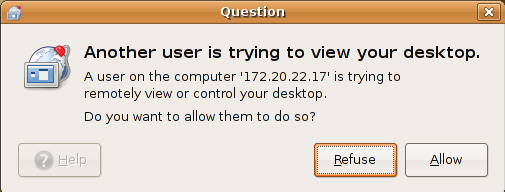
Now on the remote machine you should see the following screen asking for permission to allow this connection you need to click on allow this will comeup only if you tick "Ask you for confirmation" option under sharing
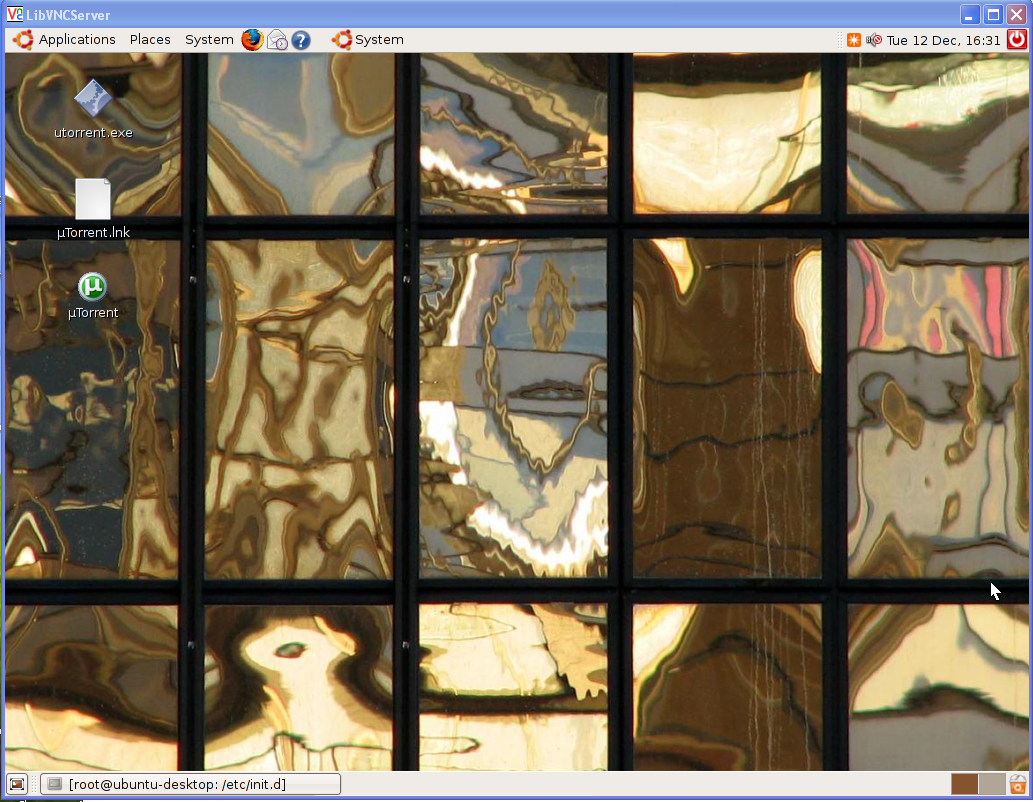
Once it connected you should see the remote machine desktop like the following screen
Does this article relate only to systems behind a firewall, like a home network? OR
Does all this also apply across the Internet. For example, My sister calls from the next town and asks me to look at her screen for some reason and I have to connect through 2 ISPs (mine and her’s) she uses DSL and I use a cable modem?
this should work across internet also and is there any error messages
I believe vino-serv listens on port 5900 by default, so you should have that forwarded on through your firewall.
From this thread I figured out you can turn on remote desktop thru a putty window by typing:
gconftool-2 -s -t bool /desktop/gnome/remote_access/enabled true
and disable the auto prompting by typing:
gconftool-2 -s -t bool /desktop/gnome/remote_access/prompt_enabled false
Remoting into a system using VNC is really handy. One thing to remember is that most VNC connections are NOT encrypted. I tunnel my VNC session through ssh.
$ ssh -L :localhost:
For example. If I’m vnc’ing from a computer called home-box to work-box. I’ll tell ssh to connect to home-box.some-isp.com using port 5910 on localhost. I’ll connect to work-box.columbia.net using default port of 5900. The ssh command line I’d use is:
$ ssh -L 5910:localhost:5900 work-box.columbia.net
to login to the remote computer.
Then I’d tell vnc_viewer on home-box to connect to localhost:5910
Now all your vnc traffic to work-box is nice and encrypted.
Oops, I used greater-than and less-than signs to show enter your values here and that got dropped as bad html. My bad.
The part the reads:
$ ssh -L :localhost:
should read:
$ ssh -L local-vnc-port:localhost:remote-vnc-port other-computer
Hope this works better.
David
This is awesome. Unless someone shows with pictures how easy it can be, its hard to realize that it really is. THanks.
ubuntugeek rocks
Thanks for that tip David (and especially the example) just what I was looking for because I only use ssh to connect in from outside.
Thanks.
Hey, I’m trying to set up my Ubuntu so that I can access it from a college Windows XP machine. I have installed NX and that was no luck, I opened ports 22 and 44 on my router but still no look. I have installed the VNC server on my machine and downloaded the viewer for a XP machine.
I have opened the ports 5900 and 5600 just incase on my router and nothing is working
My router is a Linksys WRT54
Please help!
And if possible is there a program that I can use to recover lost files for Ubuntu ex3/ ex2 partitions?
Many thanks
I have a problem with VNC to Ubunthu…
I am getting connection to remote desktop , but it showing a blank screen only.
Iam connecting from a windows xp based pc in same LAN network .
Looking for a solution
Regards,
@najeeb
try this
Edit the following file
gedit /etc/gdm/gdm.conf-custom
Just add the following line
DisallowTCP=false
save and exit the file
Hi,
tnx, I have it working too. But when I connect to it using VNC from a windows machine, the CPU goes to 100%. Is that normal on a P IV 1,7 Ghz? Even a blank desktop with 1 terminal with htop gets it to 100%.
When I connect to it using a ssh connection with Putty, it almost doesnt take any CPU power at all.
Never mind, I found and set up X11VNC. That runs with a LOT less CPU.
Just what I’ve been looking for, will try this out. Switching over to Ubuntu and being able to remote from a Windows PC will be very handy indeed.
Hello! i can use only port 443 for company reasons.
Can you please explain me how to set this port on the server side of connection ?
I can’t connect my edge wireless modem in Ubuntu Linux. So I need a download link of a multimedia player of Ubuntu Linux To Download from my windows XP and Please Give a Solution As Early As Possible. And How can remote my Ubuntu Linux to Windows XP.
Is this possible for machines that uses dynamic IP address?
Marco, you can either set your ssh server to run on port 443 (in /etc/ssh/sshd.conf) or set your ADSL router (if you use one) to forward port 443 to 22 on your servers internal IP. In both instances, set up your firewall accordingly to allow traffic on port 443 to that IP as well.
As an aside, have a look at GSTM to manage your SSH tunnels in Gnome. It opens up a whole new world!
Oops that should be /etc/ssh/sshd_config
🙂
thanks a lot! works just like directed
I was able to connect from the outside into the Ubuntu machine following the above steps but am wondering now if there’s a way for the host machine to find out how many users are actually viewing their shared screen?
I try the instruction and the error is
vncviewer: ConnectToTcpAddr: connect: Connection timed out
Unable to connect to VNC server
the option in Vino to change the port, doesn’t work well.
Only ports selected above the standard port (5900 and higher) then it works well. When a port below 5900 is selected, it still listens at the standard port.
Not sure somebody has reported this as a bug
I guess this setup probably don’t use encryption, how do I setup ubuntu so that it uses encryption? I know that tightvnc is the client that can do encryption but not sure if ubuntu supports that.
@mountaindew
If you use ssh command suggested above, it will be encrypted (at least between the two hosts connected with the tunnel) 🙂
Unfortuantely, the Windows VNC viewer you suggested is not compatible with Vista, or at least the free version is not.
Google search bought this page up, after hours of experimenting I found out how to fix the black screen when trying to rdesktop (in my case through VPN) in Ubuntu.
This is caused by the MTU value of your ethernet connection.
If you sudo ifconfig you will see a MTU value for [eth0]. Mine was set to 500 and something, when I set this to 1500 it worked.
Other people seem to be the other way around, ie. set to 1500 and they need to set it to 1400 or something – try experimenting.
To set the MTU : sudo ifconfig eth0 mtu 1500
Thanks…I am using windows vista home and using the free version of realvnc viewer…works just great! Thanks!
Very nice tutorial. Thanks alot.
Also, very good comments on using SSH tunnel. Much more secure.
I have one question though. If during the course of working on a remote box I decide I need to reboot it, it will come back up to the login screen. Since this method requires a user to be logged in, Im stuck with only CLI access from then on. Is there a way to remotely login a GNOME session, or script an autologin session somehow?
So is there a way to ssh into a system which is not logged in and start/get gui login/desktop?